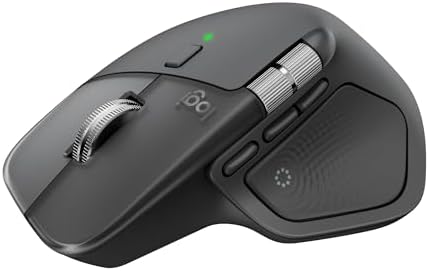


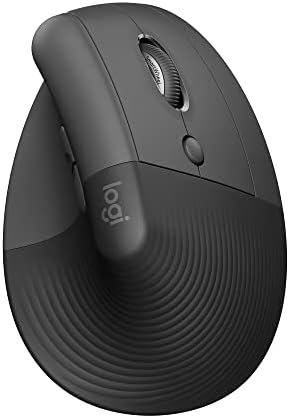
MacBook on the left, Windows box on the right, and somehow two mice and two keyboards fighting for desk real estate. That is the default. It is also unnecessary.
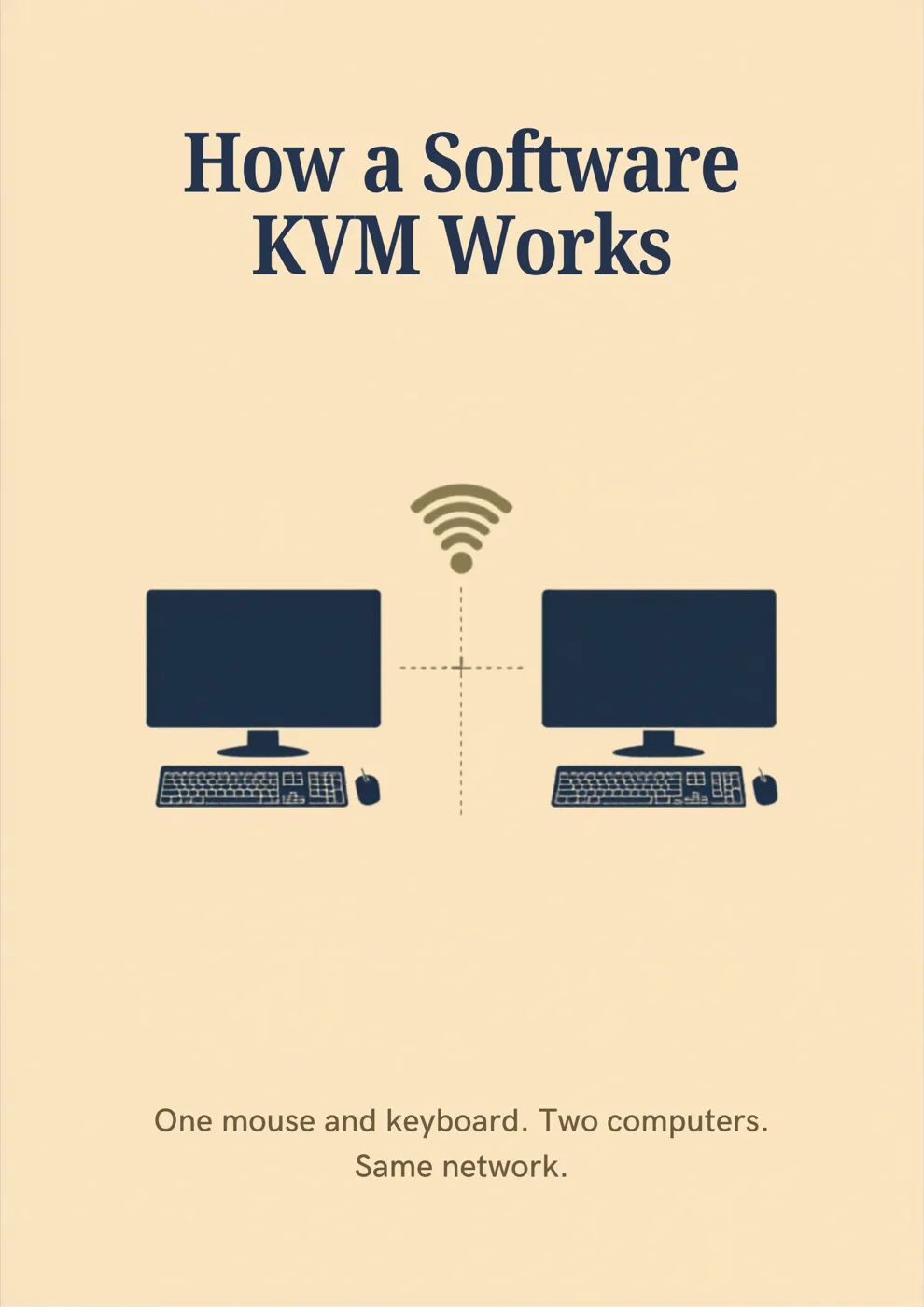
A hardware KVM shares the monitor and the peripherals, one button, whole desk moves. A software KVM only shares mouse and keyboard over the LAN while each machine keeps its own screen. Cursor hits the edge, control hops. Video never moves.
This page is the software fork. Hardware mouse picks: /guides/best-wireless-mouse-productivity-comfort. Hardware KVM path: /guides/best-usbc-kvm-switch-mac-windows · setup order: /guides/kvm-switch-setup-two-computers-one-desk.
Job-first fork
- Both machines are Windows, budget is $0 → Mouse Without Borders (Microsoft PowerToys). Free, four-PC ceiling, hard Mac wall.
- Mac + Windows (or Linux) and you already own / want Logitech → Logitech Flow with MX Master 4 · price varies (or 3S · ).
- Cross-platform without buying Logitech → Synergy 3 (~$29 Personal). Open-source cousin: Barrier if you like free and DIY.
- One monitor must switch with the peripherals → stop reading software reviews; buy a USB-C KVM.
30-second compare
| Mouse Without Borders | Logitech Flow | Synergy 3 | |
|---|---|---|---|
| Cost | Free | Free with Flow-supported Logitech gear | ~$29 Personal / ~$49 Pro |
| OS | Windows only | Mac, Windows, Linux | Mac, Windows, Linux |
| Max PCs | 4 | 3 | Unlimited on Pro |
| Hardware lock-in | None | Flow-supported Logitech mouse | None |
| File drag / clipboard | Yes / yes | Yes / yes | Clipboard yes; drag often Pro |
| Network | Same LAN/Wi-Fi | Same LAN/Wi-Fi | Same LAN/Wi-Fi |
All three run a tiny daemon, watch the cursor edge, and hand off input. None of them route video. Guest Wi-Fi with client isolation will ghost you.
Mouse Without Borders: free Windows wall
Microsoft Garage project, still alive inside PowerToys. Install on each Windows box, share a security code, drag the cursor across edges. Clipboard sync, file drag, lock-all hotkey. Setup is roughly “paste code, move icon, done.”
The hard wall: no Mac, no Linux. Community asks for it; public answer stays “not on the roadmap.” If Apple is in the mix, skip this tool entirely.
Best for: two Windows PCs, zero budget, streaming PC + gaming PC side by side.
Logitech Flow: polished Mac + Windows
Built into Logi Options+. Needs a Flow-supported mouse (keyboard optional but nicer). Free once the hardware is already on the desk, which is either a gift or a shopping trip.
Common Flow gear:
- MX Master 4 · price varies: flagship shell, Actions Ring, Darkfield glass
- MX Master 3S · : same Flow job, older formula; check the card
- MX Keys S · $110-$135: keyboard that follows the cursor
- Lift · price varies: vertical shape, still Flow
Install Options+ on each machine, same network, open the Flow tab, arrange screens to match the desk. Drag files Mac↔Windows, clipboard sync, near-instant edge hop. Bolt receiver usually beats flaky Bluetooth for the hop.
Best for: hybrid Mac + Windows desks where you were buying an MX mouse anyway.
Tradeoff: mouse dies → software KVM dies with it. Three-computer ceiling. Linux works, Mac/Windows feels smoother.
Mouse deep dive: /compare/logitech-mx-master-4-vs-3s. Broader picks: /guides/best-wireless-mouse-productivity-comfort.
Synergy 3 (and Barrier): paid / FOSS, any mouse
Synergy 3 (Symless) is the commercial pick when free tiers do not fit: Linux in the mix, no Logitech tax, or more than three machines. ~$29 Personal (basic, few PCs) or ~$49 Pro (unlimited, TLS, file drag). One-time buy, not a subscription.
You designate a server (physical mouse/keyboard) and clients, map screen layout, optionally turn on encryption for shared Wi-Fi. Setup takes longer than Flow, more “IT desk,” less “install and forget.”
Barrier is the open-source fork of older Synergy. Free, cross-platform, community-maintained. Fine if you like config files and do not need a vendor support path. Skip if you want the polished paid app.
Best for: Linux hosts, mixed hardware you refuse to replace, security-sensitive LANs (Pro TLS).
Tradeoff: money (Synergy) or DIY friction (Barrier). Personal Synergy often lacks the file-drag free tools include.
Decision shortcuts
- All Windows, no Logitech loyalty → Mouse Without Borders
- Mac + Windows, MX mouse already owned → Flow
- Mac + Windows, no Logitech, will not buy one → Synergy Personal
- Mac + Windows, shopping for a mouse anyway → MX Master 3S or 4 + free Flow often beats Synergy + a random cheapie
- Linux on one machine → Synergy (or Barrier); Flow’s Linux path is thinner; MWB is a hard no
- Five+ computers under one set of hands → Synergy Pro
- Encrypted input on shared Wi-Fi → Synergy Pro TLS
When you still need a hardware KVM
Software sharing does not move the display. Each computer keeps its own panel. If both machines must drive the same monitor (or you refuse a second panel), or you need to share webcam / USB audio / external SSD with the active host, buy hardware.
Common hybrid: hardware KVM for one shared ultrawide + webcam on call days, Flow for everyday cursor hops when both screens are on. They do not fight.
Start here: /guides/best-usbc-kvm-switch-mac-windows · budget lane: /guides/best-budget-usb-c-kvm-switches · cable order: /guides/kvm-switch-setup-two-computers-one-desk.
Setup (sparse)
Mouse Without Borders: PowerToys → Mouse Without Borders → share code → arrange layout → shove cursor off the edge.
Flow: Options+ both sides → pair mouse (Bolt preferred) → Flow tab → match physical layout → optional “keyboard follows cursor” with MX Keys S.
Synergy: install server/client → map screens → enable TLS on Pro before coworking Wi-Fi.
Same Wi-Fi or Ethernet is non-negotiable. AP isolation and guest VLANs kill the fun.
Frequently asked questions
Can Mouse Without Borders run on a Mac?
No. Windows only. Mac in the mix → Flow (with Logitech) or Synergy / Barrier.
Is Logitech Flow really free?
The feature is free inside Options+. The cost is owning a Flow-supported Logitech mouse, which you may already have.
Does Flow need internet?
No. Same local network is enough after Options+ is installed and the machines have paired.
Non-Logitech keyboard with Flow?
The mouse half needs Flow-supported Logitech hardware. Any USB/Bluetooth keyboard can type into whichever machine owns the cursor; for the keyboard to hop with the cursor, pair something like MX Keys S · $110-$135.
Synergy over the public internet?
Not as designed. Same LAN (or a VPN if you insist). Internet latency usually makes the cursor feel like molasses.
Huge file drag-and-drop?
Fine for small/medium files. Multi-gig transfers are happier on a network share, USB drive, or cloud sync than through the input-sharing channel.
Webcam / USB audio / external SSD?
Software KVMs share input only. Peripherals stay plugged into whichever host owns them. Need shared USB + video → hardware KVM.
Amazon links are affiliate links.