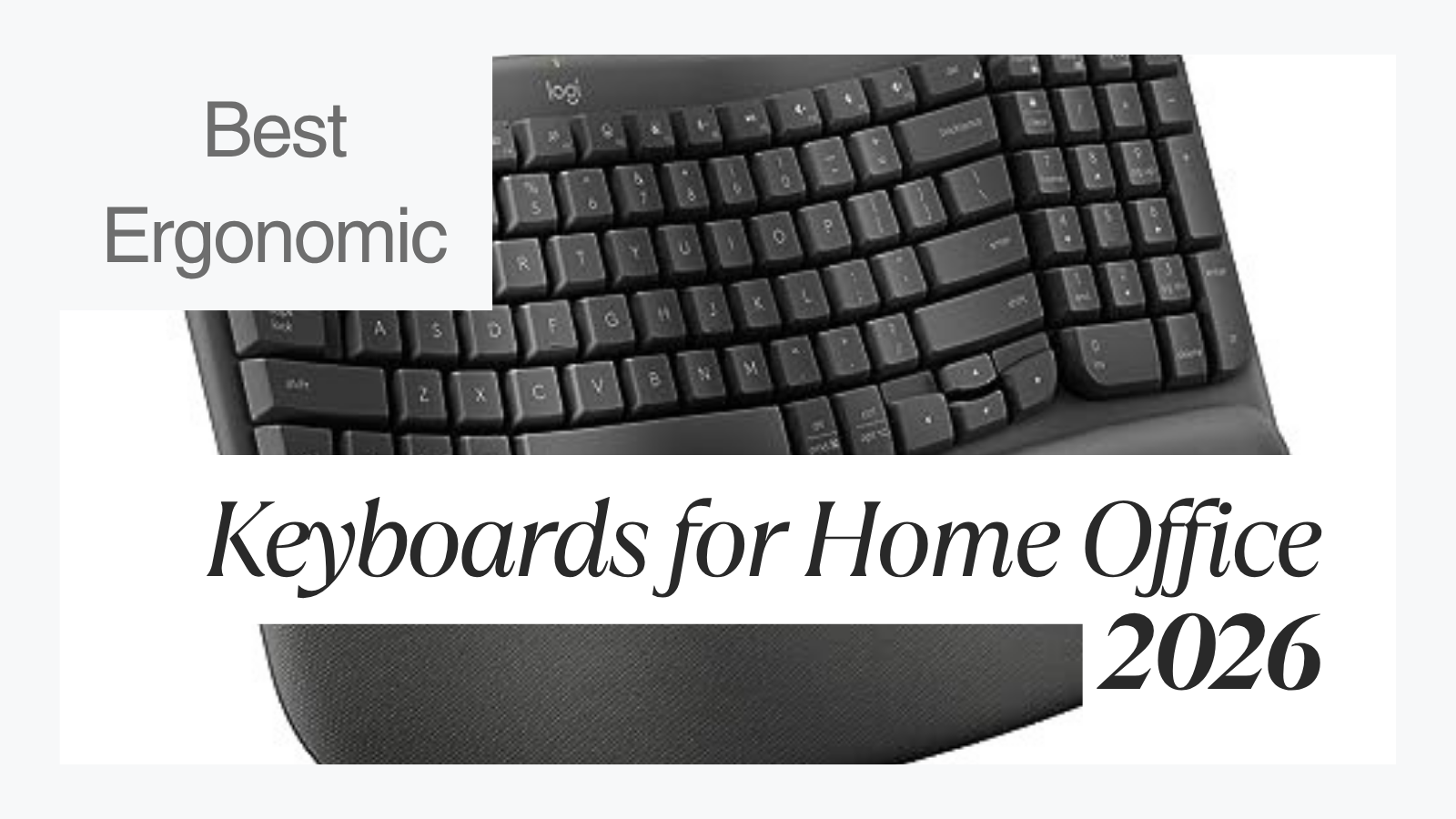
If you spend 6 or more hours a day typing at a home office desk, the keyboard you use has a direct impact on wrist health, posture, and long-term comfort. Standard flat keyboards force your wrists into an unnatural pronated position, rotating your forearms inward and compressing the carpal tunnel. Over months and years, this leads to strain, fatigue, and increased risk of repetitive stress injuries. Ergonomic keyboards may help reduce these strain patterns by introducing wave-shaped key beds, split layouts, tenting angles, and curved key arrangements that keep your hands, wrists, and forearms in a more neutral alignment. Five keyboards cover the full range, from a gentle wave layout with zero learning curve to a contoured mechanical board built for developers.
Best overall: The Logitech Wave Keys ($50-$60) offers a gentle wave layout with memory foam palm rest and zero learning curve for standard-keyboard users.
Best split design: The Microsoft Sculpt Ergonomic Keyboard (unavailable) separates your hands with a domed split layout and built-in tenting for stronger wrist correction.
Best adjustable split: The Kinesis Freestyle2 ($89)) splits into two independent halves with up to 20 inches of separation and optional 5-15 degree tenting.
Best mechanical split: The Kinesis Freestyle Edge RGB ($219) combines Cherry MX switches with a 20-inch split, per-key RGB, and full macro programmability.
Best premium contoured: The Kinesis Advantage2 ($379) uses concave keywells with columnar key layout and 20-degree built-in tenting for maximum ergonomic correction.
Quick Comparison
| Feature | Wave Keys | Sculpt | Freestyle2 | Edge RGB | Advantage2 |
|---|---|---|---|---|---|
| Price | $50-$60 | unavailable | $89 | $219 | $379 |
| Approach | Gentle wave | Domed split + tenting | True split (9-20") | Mechanical split (20") | Contoured keywells |
| Switches | Membrane | Membrane | Membrane (35g) | Cherry MX | Cherry MX |
| Learning Curve | None | 1-2 weeks | 1 week | 1-2 weeks | 2-4+ weeks |
| Connectivity | BT + Logi Bolt | 2.4 GHz only | USB (BT variant avail.) | USB wired | USB wired |
| Battery | 36 months (AAA) | ~3 years (AAA) | N/A (wired) | N/A (wired) | N/A (wired) |
| Tenting | Wave contour (~3-5 deg) | Built-in fixed | Optional 5/10/15 deg | Optional 5/10/15 deg | 20 deg built-in |
| Best For | First-time ergonomic | Budget split users | Adjustable split | Developers/gamers | RSI recovery, power users |
Our Top Picks
Logitech Wave Keys: Best Overall Ergonomic Keyboard
The Logitech Wave Keys is the easiest mainstream ergonomic keyboard to recommend for people who want wrist relief without relearning how to type. Its defining feature is the wave-shaped key layout: a gentle, continuous curve across the key bed that guides your fingers into a more natural resting position without physically splitting the keyboard into two halves. This means there's essentially no learning curve. If you can type on a standard keyboard, you can type on the Wave Keys from day one with little to no speed loss.
The built-in palm rest uses Logitech's memory foam cushioning, which compresses under the weight of your wrists and distributes pressure evenly. Unlike aftermarket palm rests that slide around or sit at the wrong height, the Wave Keys' integrated rest is positioned at exactly the right elevation relative to the key tops, keeping your wrists in a neutral or slightly downward-angled posture.
- Layout: Single-body wave-shaped key bed with a smooth, continuous curve separating left and right hand zones
- Palm Rest: Integrated memory foam palm rest with fabric surface
- Connectivity: Bluetooth Low Energy 5.1 (connects to up to 3 devices) plus Logi Bolt USB receiver (2.4 GHz)
- Battery Life: 2 AAA batteries, rated for up to 36 months of typical use
- Number Pad: Integrated full number pad on the right side
- Key Travel: Standard membrane keys with low-profile scissor-style switches
- Weight: 1.65 lbs with batteries
- Compatibility: Windows 10/11, macOS 11+, ChromeOS, iPadOS 14+, Android 9.0+
- Dimensions: 14.8 x 8.6 x 1.2 inches
- Street Price: $50-$60
Where the Wave Keys differs from the Sculpt is in its philosophy of ergonomic intervention. Rather than forcing a dramatic split between the two halves of the keyboard, the Wave Keys uses a subtle wave contour, roughly 4 to 6 degrees of curvature across the key bed, that gently nudges your wrists toward a more neutral position. For the majority of workers who've never used an ergonomic keyboard before, this gentle approach means immediate comfort without a productivity dip.
The Bluetooth multi-device pairing is a real practical advantage. You can pair the Wave Keys to your work laptop, personal computer, and tablet simultaneously, switching between them with dedicated Easy-Switch buttons along the top edge. The Logi Bolt receiver provides a lower-latency connection for users who prefer 2.4 GHz reliability over Bluetooth.
Battery life is outstanding. Logitech rates the Wave Keys for up to 36 months on a pair of AAA batteries with the backlight off, which is three times longer than most wireless ergonomic keyboards.
Microsoft Sculpt Ergonomic Keyboard: Best Split Design
The Microsoft Sculpt Ergonomic Keyboard has been one of the most recommended ergonomic keyboards since its 2013 debut. It remains the right choice for users who want more aggressive ergonomic posture correction than what the Wave Keys provides. Its domed, split-keyset design physically separates the left and right hand key clusters with a raised center ridge, pushing your hands roughly 2 to 3 inches further apart than the Wave Keys' gentle wave. This wider separation more aggressively counters ulnar deviation, the inward angling of the wrists toward the pinky side that contributes to carpal tunnel pressure.
The fixed tenting angle is built directly into the keyboard body, elevating the center above the outer edges. This forces your forearms to rotate slightly outward, reducing the pronation that flat keyboards encourage. Combined with the cushioned palm rest and reversed-tilt front edge, the Sculpt positions your hands, wrists, and forearms in one of the most ergonomically correct postures available without moving to a fully split two-piece board.
- Layout: Split keyset with a continuous curved body, domed center, and reversed-tilt front edge
- Palm Rest: Integrated cushioned palm rest with leatherette surface
- Connectivity: Wireless via USB 2.4 GHz receiver (no Bluetooth)
- Battery Life: 2 AAA batteries, rated for approximately 3 years of typical use
- Number Pad: Separate wireless unit, connects through the same receiver
- Key Travel: Standard membrane keys with low-profile dome switches
- Weight: 1.84 lbs (keyboard only, with batteries)
- Compatibility: Windows 10/11 natively; macOS with minor key remapping
- Dimensions: 15.4 x 9.0 x 2.3 inches (keyboard + palm rest)
- Street Price: unavailable
The separate number pad remains an underrated advantage. By detaching the numpad from the main keyboard body, you can position your mouse 3 to 4 inches closer to center, reducing the shoulder reach that contributes to upper back and neck tension during long work sessions. You can also place the numpad to the left side or remove it from your desk entirely when it's not needed.
The trade-off is the adjustment period. Most users who switch to the Sculpt from a standard keyboard report that typing speed drops during the first 1 to 2 weeks, with full recovery to normal speed within about 30 days. The more dramatic the split compared to your previous keyboard, the longer the adjustment takes.
The Sculpt connects only via its dedicated 2.4 GHz USB receiver. There's no Bluetooth option. This limits its flexibility for multi-device setups but provides a reliable, low-latency connection with minimal interference. If you lose the receiver, the keyboard becomes unusable since replacement receivers aren't available.
How to Choose Between These Five Keyboards
The decision comes down to how much ergonomic correction you need and how much adjustment you're willing to tolerate.
The Wave Keys uses a gentle wave contour that keeps both halves of the keyboard on a single plane. Your hands sit roughly 1 inch apart at the center divide. This reduces wrist strain by guiding your fingers into a curved resting position, but it doesn't force your hands apart or introduce tenting. The benefit is zero learning curve and immediate compatibility with your existing muscle memory.
The Sculpt uses a domed split that separates your hands by 2 to 3 inches at the center ridge, with built-in tenting. This provides more aggressive pronation reduction and ulnar deviation correction, but it requires rewiring your muscle memory over 2 to 4 weeks. If you've already experienced wrist discomfort with a flat keyboard and want a stronger intervention, the Sculpt delivers more biomechanical correction. The Kinesis Freestyle2 goes further by physically separating the halves by up to 20 inches. The Freestyle Edge RGB adds mechanical switches and programmability for developers. And the Advantage2 provides the most aggressive correction with concave keywells and 20-degree tenting.
Kinesis Freestyle2: Best Adjustable Split
The Kinesis Freestyle2 takes the split concept further than the Sculpt by physically separating the keyboard into two independent halves connected by a cable. The standard model offers 9 inches of separation; the extended model provides 20 inches. This lets you place each half at shoulder width or wider, eliminating the inward arm angle that causes shoulder hunching during long typing sessions. The Kinesis Freestyle2 is available through UPLIFT Desk, which also carries the optional tenting accessories.
The Freestyle2 uses membrane switches with a low 35g activation force and 3.9mm of key travel, making it quieter and lighter to type on than most mechanical keyboards. The zero-degree built-in slope means the keyboard sits flat or slightly tilted forward (negative tilt), which is the ergonomically preferred position.
- Layout: Split into two independent halves, standard QWERTY, tenkeyless with embedded 10-key
- Connection: USB wired (Bluetooth variant available separately as Freestyle2 Blue)
- Switch Type: Rubber dome membrane, 35g activation / 44g peak force
- Key Travel: 3.9 mm
- Separation: 9 inches (standard) or 20 inches (extended model)
- Tenting: Optional VIP3 accessory adds 5, 10, and 15 degree tenting with palm supports
- Compatibility: Windows and Mac, plug-and-play with no drivers
- Weight: 1.9 lbs
- Dimensions: 15.4" x 7.25" x 0.875" (collapsed)
- Price: $89 (keyboard); tenting accessories sold separately
The Freestyle2 sits between the Sculpt and a full mechanical split keyboard in terms of ergonomic aggressiveness. It gives you true physical separation without the steep price and learning curve of a mechanical board. The optional VIP3 tenting kit ($35-50, available on UPLIFT Desk) adds adjustable tenting angles that the Sculpt can't match.
Buying Tips
- The 20-inch separation model is worth the small price premium for most users since it allows shoulder-width positioning
- The VIP3 accessory (tenting + palm supports) is almost essential. Budget for it when purchasing
- If you need Bluetooth, the Freestyle2 Blue variant pairs with up to 3 devices but costs more (~$148)
Kinesis Freestyle Edge RGB: Best Mechanical Split
The Kinesis Freestyle Edge RGB is a split mechanical keyboard built for developers, gamers, and power users who want Cherry MX switches in an ergonomic layout. Each half connects via a 20-inch braided cable, and the board supports per-key RGB lighting, full macro programmability, and 9 custom profiles stored in 4MB of onboard memory. The Freestyle Edge RGB is available through UPLIFT Desk.
Cherry MX switch options include Red (linear, 45g), Brown (tactile, 45g), Blue (clicky), and Speed Silver (linear, 45g, shorter 1.2mm actuation). The TKL layout provides 95 programmable keys without the bulk of a full-size board.
- Layout: TKL (~80%), split into two halves, 95 programmable keys
- Connection: USB wired
- Switch Options: Cherry MX Red, Brown, Blue, or Speed Silver
- Key Travel: 4mm (standard MX) or 3.7mm (Speed Silver)
- Separation: 20-inch braided linking cable
- RGB Lighting: Per-key addressable, 16.8 million colors
- Programmability: SmartSet Engine with on-the-fly remapping, 100 macros per layout (up to 250 actions/sec), 9 profiles, 4MB onboard memory
- Tenting: Optional V3 Pro Lifters (5, 10, 15 degrees) or Lift Kit with palm supports
- Compatibility: Windows, Mac, Linux, Chrome OS, plug-and-play
- Weight: ~2.8 lbs
- Price: $219
The Edge RGB bridges the gap between a gaming mechanical keyboard and an ergonomic split board. The SmartSet programming engine lets you remap any key and build complex macros without installing software. Profiles are stored onboard, so your custom layouts follow the keyboard between machines.
Buying Tips
- Cherry MX Brown is the most versatile switch for mixed typing and gaming: tactile bump without the noise of Blues
- Speed Silver switches (1.2mm actuation) are better for gaming but may cause accidental key presses during regular typing
- The optional tenting accessories are sold separately. Factor $30-50 for lifters or the full lift kit
- Game Mode disables the Windows key to prevent accidental alt-tabs during gaming sessions
Kinesis Advantage2: Best Premium Contoured
The Kinesis Advantage2 represents the most aggressive ergonomic keyboard design available. Instead of a flat or split layout, it uses concave keywells with a columnar (non-staggered) key arrangement. Your fingers rest in bowl-shaped depressions that match the natural curling motion of each finger, and keys are arranged in straight vertical columns rather than the staggered rows of a traditional keyboard. This eliminates the sideways finger stretching that contributes to strain. The Advantage2 is available through UPLIFT Desk.
The built-in 20-degree tenting angle is the steepest fixed tenting in this guide, reducing forearm pronation more than any other keyboard here. Dedicated thumb clusters on each side move frequently used keys (Enter, Space, Backspace, Delete) from the weaker pinkies to the stronger thumbs.
- Layout: Columnar/orthogonal with concave keywells, 68 full-size keys + 18 function keys
- Connection: USB wired (72-inch cable)
- Switch Type: Cherry MX Brown (tactile, 45g) or Cherry MX Quiet Red (linear, sound-dampened)
- Key Travel: 4.1 mm
- Tenting: 20 degrees built-in (fixed)
- Thumb Clusters: Dedicated on each hand (Enter, Space, Backspace, Delete, Home, End, Page Up, Page Down)
- Programmability: SmartSet Engine with full key remapping, 100 macros (200+ characters each), onboard v-Drive memory, QWERTY/Dvorak toggle
- Compatibility: Windows 7+, macOS 10.4+, Linux, Chrome OS, Android
- Weight: 2.2 lbs
- Dimensions: 16.5" x 8.0" x 2.9"
- Price: $379
The learning curve is the steepest of any keyboard in this guide. The columnar layout and concave keywells require completely retraining your muscle memory. Expect 2 to 4 weeks of reduced typing speed, with some users reporting full adaptation takes 4 to 8 weeks. This is the keyboard for users who've tried gentler ergonomic options and still experience strain, or for developers who type 8+ hours daily and want the maximum biomechanical advantage.
Buying Tips
- The Cherry MX Quiet Red variant is the better choice for shared offices due to sound dampening
- The columnar layout is the biggest adjustment, not the concave keywells. Practice with typing tutors during the first week
- The embedded number pad (toggled via Num Lock on the right keywell) replaces a separate numpad
- The SmartSet v-Drive stores your configuration as editable text files, making backup and sharing easy
Best Compact Wireless Keyboards for Hybrid Workers
If you split time between a home office and a corporate office, a compact ergonomic keyboard under 15 inches wide is the practical choice. These boards sacrifice the dramatic split of a full ergonomic layout in favor of portability while still offering subtle ergonomic features like slight key curvature, negative tilt, and low-profile switches.
Here's what to look for in a compact wireless ergonomic keyboard:
- Width: Under 15 inches, fitting easily into a laptop bag
- Weight: Typically 1.0 to 1.5 lbs
- Connectivity: Bluetooth multi-device pairing (2 to 3 devices) plus USB-C wired mode
- Battery: Rechargeable lithium, 2 to 4 weeks on a single charge with backlighting off
- Key Profile: Low-profile switches with 1.0 to 1.5 mm travel
- Price Range: $80 to $150
The Logitech Wave Keys, at 14.8 inches wide and 1.65 lbs, sits right at the edge of this category. Its Bluetooth multi-device pairing makes it a viable option for workers who keep a keyboard at both locations rather than transporting one daily. If you need something smaller, the Logitech Ergo K860 ($130-170) offers a split-wave design with a more compact footprint and rechargeable battery, though it still measures 18 inches wide. For true portability under 12 inches, you'll sacrifice most ergonomic features and move into standard compact keyboard territory.
The Freestyle2 Blue ($148, available on UPLIFT Desk) is another wireless option worth considering. While it's not compact when assembled, the two halves can be stacked for transport, and the Bluetooth multi-device pairing works well for switching between a Mac and a PC.
Adjustable Tenting: Why the Angle Matters
Tenting refers to raising the center of the keyboard so your hands rest at an angle rather than lying flat on the desk. This reduces forearm pronation, the inward rotation that compresses the carpal tunnel.
- 0 Degrees (Flat): Standard keyboard position; maximum pronation
- 5 to 7 Degrees: Mild tenting; reduces pronation without a steep learning curve. The Microsoft Sculpt sits in this range
- 10 to 15 Degrees: Moderate to aggressive tenting; notable pronation reduction. Available on premium split mechanicals
- 15+ Degrees: Extreme tenting, approaching a vertical orientation; used primarily by users with existing RSI conditions
The Wave Keys doesn't incorporate traditional tenting but achieves a similar effect through its wave contour, which angles each hand zone slightly outward from the center. The result is a mild pronation reduction comparable to approximately 3 to 5 degrees of tenting, though achieved through curvature rather than elevation.
For users who want adjustable tenting, the Kinesis VIP3 accessory ($35-50) adds 5, 10, and 15 degree options to the Freestyle2 or Freestyle2 Blue. This is the most flexible tenting system in this guide and is available through UPLIFT Desk.
Buying Tips
- Start gentle if this is your first ergonomic keyboard. The Wave Keys' wave contour provides real ergonomic benefit with zero adjustment period. If it doesn't resolve your wrist discomfort after 2 to 3 months, upgrade to the Sculpt's more pronounced split. Jumping straight to a fully split mechanical board often leads to frustration and abandonment.
- The adjustment period is real but temporary. For the Sculpt, user reports consistently describe reduced typing speed during the first 1 to 2 weeks, with most users recovering their full speed within 30 days. Don't switch keyboards the week before a major deadline.
- Wireless reliability depends on the protocol. The Sculpt's dedicated 2.4 GHz receiver provides lower latency and fewer dropouts than Bluetooth in environments with heavy wireless interference. The Wave Keys offers both Bluetooth and Logi Bolt 2.4 GHz, giving you flexibility to choose based on your environment.
- Palm rests should support, not elevate. A proper palm rest keeps your wrists in a neutral or slightly downward-angled position. Both the Wave Keys and Sculpt have correctly positioned integrated palm rests. If you find your wrists bending upward to reach the keys, your keyboard is tilted toward you with the back feet extended. Lower them.
- Separate number pads save your shoulders. A full-size keyboard with an integrated number pad pushes your mouse 3 to 4 inches further to the right (for right-handed users), forcing your shoulder into a constant reach. The Sculpt's detached number pad lets you place it to the left side or remove it entirely. The Wave Keys includes an integrated numpad, so pair it with a compact mouse or position the keyboard slightly to the left.
- Membrane vs. mechanical is a preference, not a hierarchy. Mechanical switches last longer (50 million+ keystrokes vs. 5 to 10 million for membrane) and offer more tactile feedback, but membrane keyboards like the Wave Keys and Sculpt are quieter, require less force, and cost less.
Frequently Asked Questions
Do ergonomic keyboards actually help with carpal tunnel syndrome?
Ergonomic keyboards reduce the biomechanical risk factors associated with carpal tunnel syndrome by decreasing wrist pronation, ulnar deviation, and extension. While no keyboard can guarantee prevention or relief, reducing these strain patterns over thousands of hours of typing may lower your risk. Both the Wave Keys and Sculpt address these factors, with the Sculpt providing more aggressive correction due to its wider split and built-in tenting angle.
How long does it take to get used to an ergonomic keyboard?
For the Logitech Wave Keys, most users report no adjustment period at all. The wave shape is subtle enough that your existing muscle memory transfers directly. For the Microsoft Sculpt, expect a noticeable adjustment period of 1 to 2 weeks, during which typing speed may temporarily decrease. Within 30 days, the majority of users return to their previous typing speed. Fully split mechanical keyboards may take 2 to 4 weeks beyond that.
What's the difference between the Wave Keys' wave and the Sculpt's split?
The Wave Keys uses a gentle, continuous curve across the key bed that keeps both halves on a single plane with approximately 1 inch of separation at the center. Your hands remain relatively close together, and the wave contour nudges your fingers into a natural curved resting position. The Sculpt uses a domed split that physically separates the left and right key clusters by 2 to 3 inches, with a raised center ridge and 5 to 7 degrees of built-in tenting. The Sculpt provides more aggressive ergonomic correction but requires more adaptation.
Is the Logitech Wave Keys compatible with Mac and iPad?
Yes. The Wave Keys officially supports Windows 10 and later, macOS 10.15 and later, ChromeOS, and iPadOS 14 and later. It includes dedicated key legends for both Windows and macOS functions. Bluetooth multi-device pairing allows you to switch between up to 3 connected devices using the Easy-Switch buttons on the top edge.
Should I choose a wired or wireless ergonomic keyboard?
For a fixed home office setup, wireless keyboards reduce desk clutter and allow flexible positioning. The Wave Keys offers both Bluetooth and Logi Bolt 2.4 GHz connectivity, giving you reliability options. The Sculpt uses a dedicated 2.4 GHz receiver that provides low-latency connectivity. Choose wired only if you work in an environment with extreme wireless interference or want zero battery maintenance.
Can I use an ergonomic keyboard for gaming?
One-piece ergonomic keyboards like the Wave Keys and Sculpt aren't ideal for gaming because the curved or split layout changes the position of WASD and surrounding keys relative to a standard keyboard. If you game regularly, consider keeping a standard mechanical keyboard for gaming sessions, or look into the Kinesis Freestyle Edge RGB, which is a split mechanical keyboard with programmable layers that include a dedicated gaming layout.
Which is better for someone who already has wrist pain?
If you're currently experiencing wrist pain, the Microsoft Sculpt's more aggressive split and tenting provide stronger biomechanical correction than the Wave Keys' subtle wave. However, the best first step is to consult with an ergonomics specialist or occupational therapist. For severe or persistent pain, a fully split mechanical keyboard with adjustable tenting (10 to 15 degrees) may be necessary. The Kinesis Freestyle2 with VIP3 tenting offers the most adjustable option in this guide.
How does the Wave Keys' battery life compare to the Sculpt?
The Wave Keys is rated for up to 36 months on 2 AAA batteries (with backlighting off), which is roughly 3 times longer than the Sculpt's 12+ month rating on the same battery type. Both keyboards use standard AAA batteries that are inexpensive and widely available. Neither keyboard uses rechargeable built-in batteries.
Recommendations are based on specification analysis, expert reviews, and owner feedback. We don't personally test keyboards. Kinesis products are available through our affiliate partner UPLIFT Desk. For a complete ergonomic workstation, consider pairing your keyboard with an UPLIFT V3 Standing Desk, which carries a 15-year warranty covering the frame and motors.
Related Guides
- Best Ergonomic Chairs Under $400: Pair your keyboard with a chair that supports proper posture
- Best Standing Desks Under $700: A height-adjustable desk lets you alternate between sitting and standing
- Best Desk Mats for Home Office: Protect your desk surface and provide a smooth base for your keyboard
- Best Wireless Mouse for Productivity: Complete your ergonomic input setup
- Best Monitor Arms for Desk Space: Position your screen at the right height to match your keyboard ergonomics
- Best Ergonomic Desk Setup: Complete Guide: Full walkthrough of building an ergonomic workspace