Disclosure: UPLIFT Desk provided this walking pad at no cost for review. All opinions are my own. This post contains affiliate links.
When I unboxed the UPLIFT V3 Standing Desk, the Inclining Walking Pad showed up as a surprise addition. I set it up that day and mentioned I'd follow up with a full review. Here it is.
The short version: this isn't something you'll use all day. But that's not the point. The UPLIFT Walking Pad works best as a third mode alongside sitting and standing, something you slide out for calls and put away when you're done.
Best for: Conference calls, light email, and getting extra steps during the workday
Not ideal for: Typing-heavy work or tasks that require deep focus
Standout feature: The incline and remote make adjustments effortless mid-session
The real selling point: Portability. One person can move it in and out in seconds
Setup: Plug In and Go
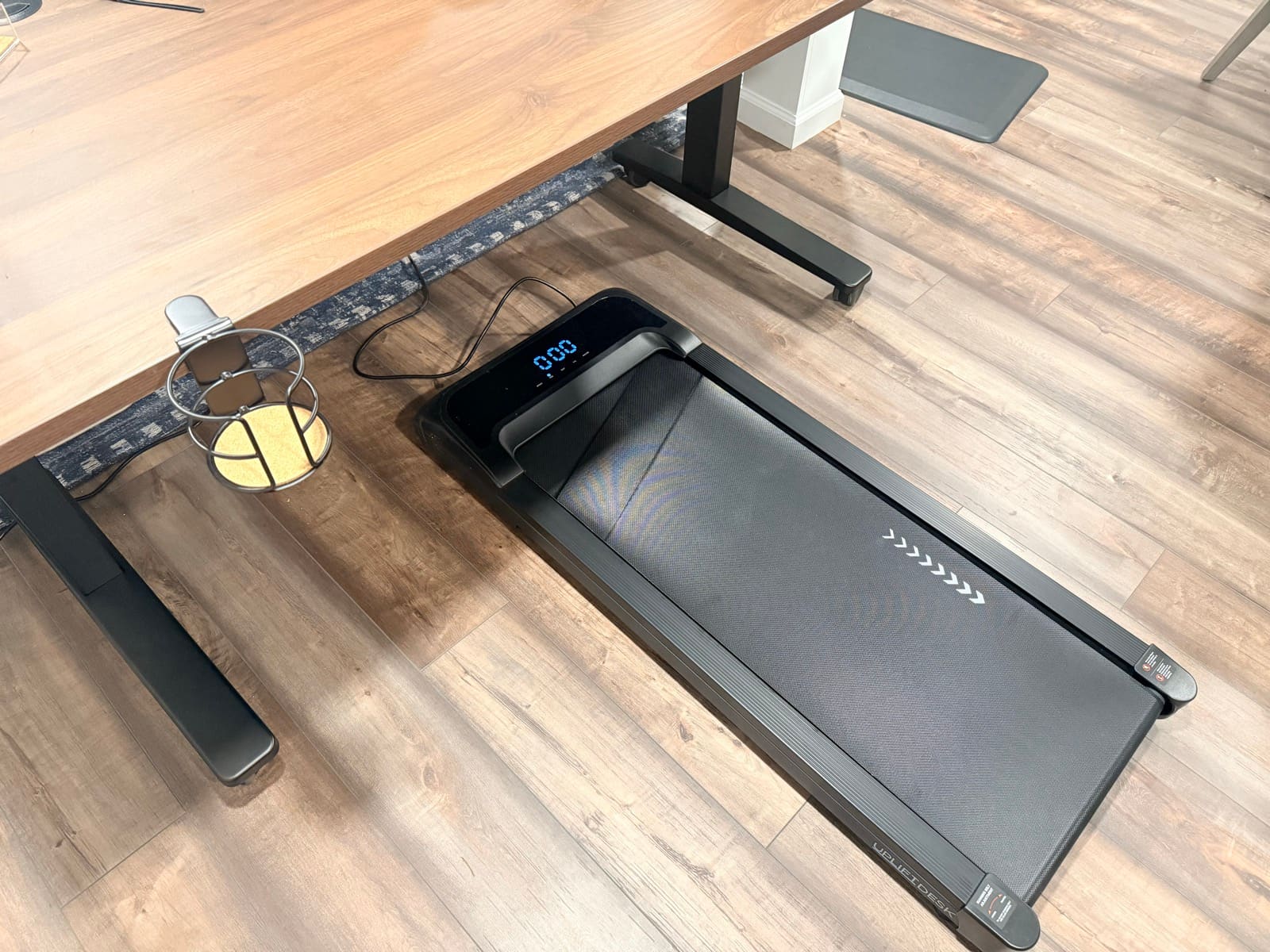
There's no assembly. You take the pad out of the box, set it on the floor, plug in the power cable, and you're walking. That's it.
I covered the unboxing in detail in my V3 desk review, but here's a quick recap. Everything comes in one box: the pad, a remote control, a small bottle of belt lubricant, and the manual.
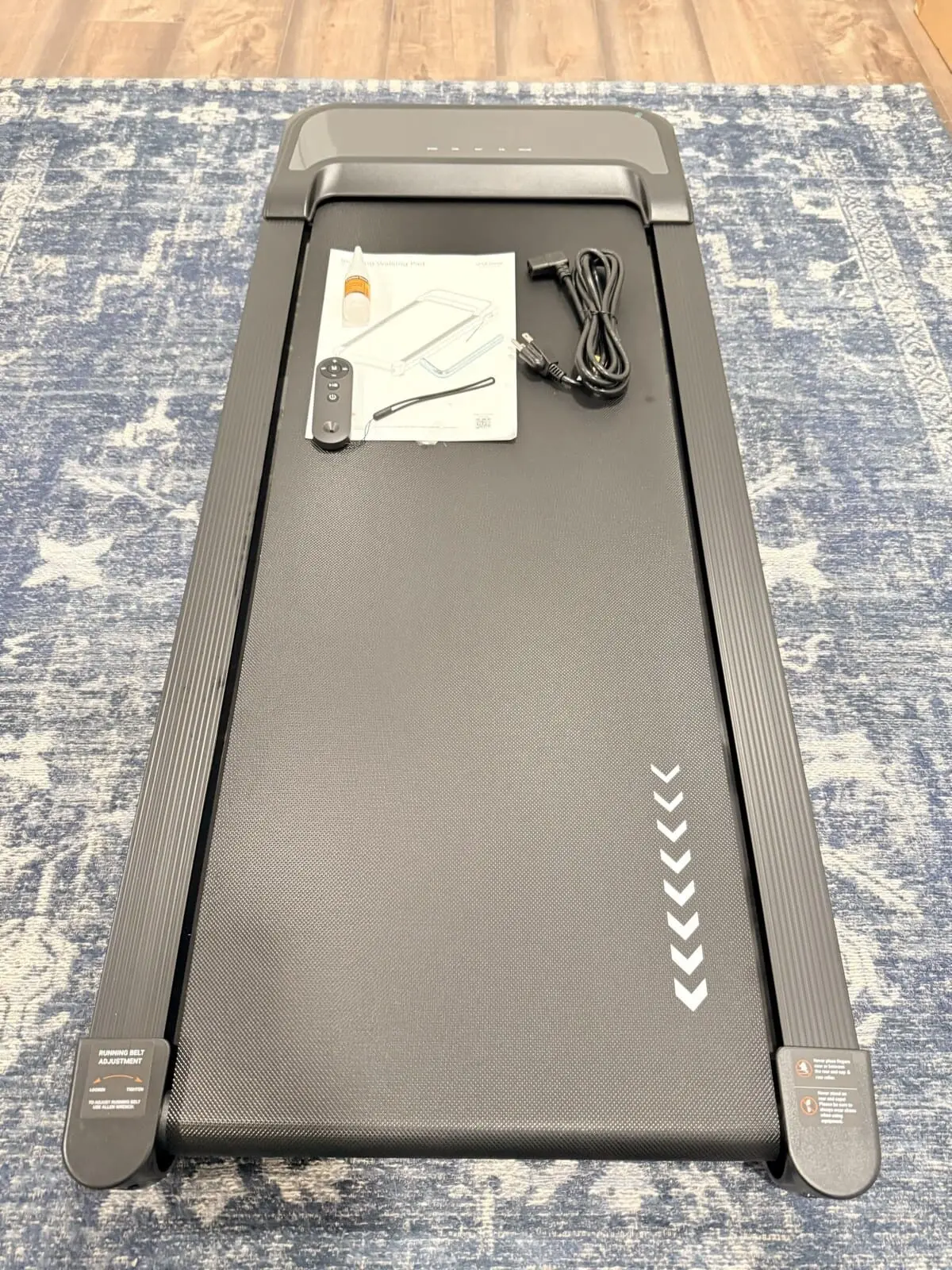
The pad slides right between the V3's legs with plenty of clearance on both sides. No repositioning of the desk frame needed. If you're pairing it with a different standing desk, just make sure there's enough space between the legs for the pad to sit flat.
The Display and Remote
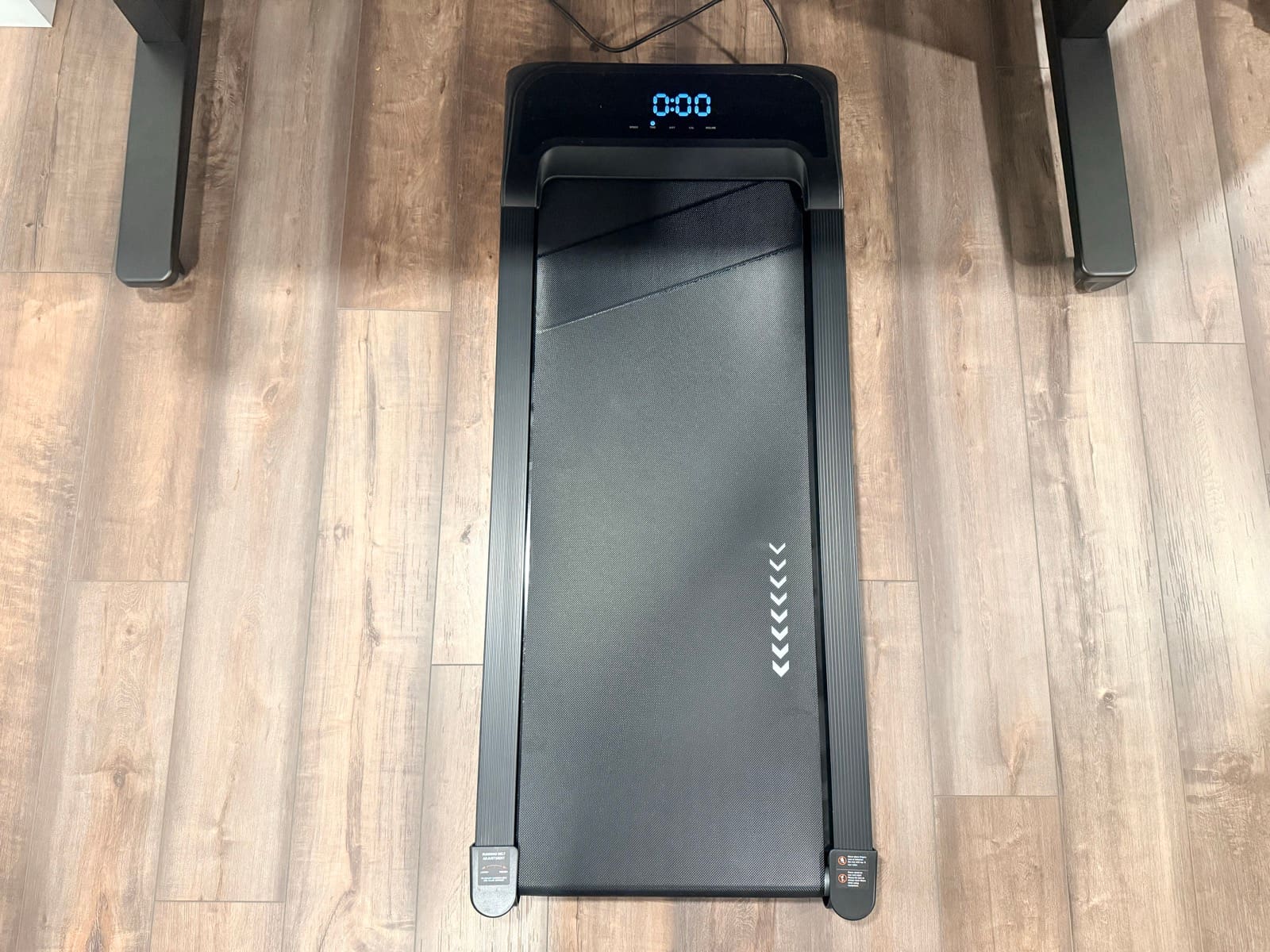
The LED display panel at the front cycles through speed, time, distance, calories, and incline. It's bright enough to read at a glance from standing height, but not so bright that it's distracting in a dim room.
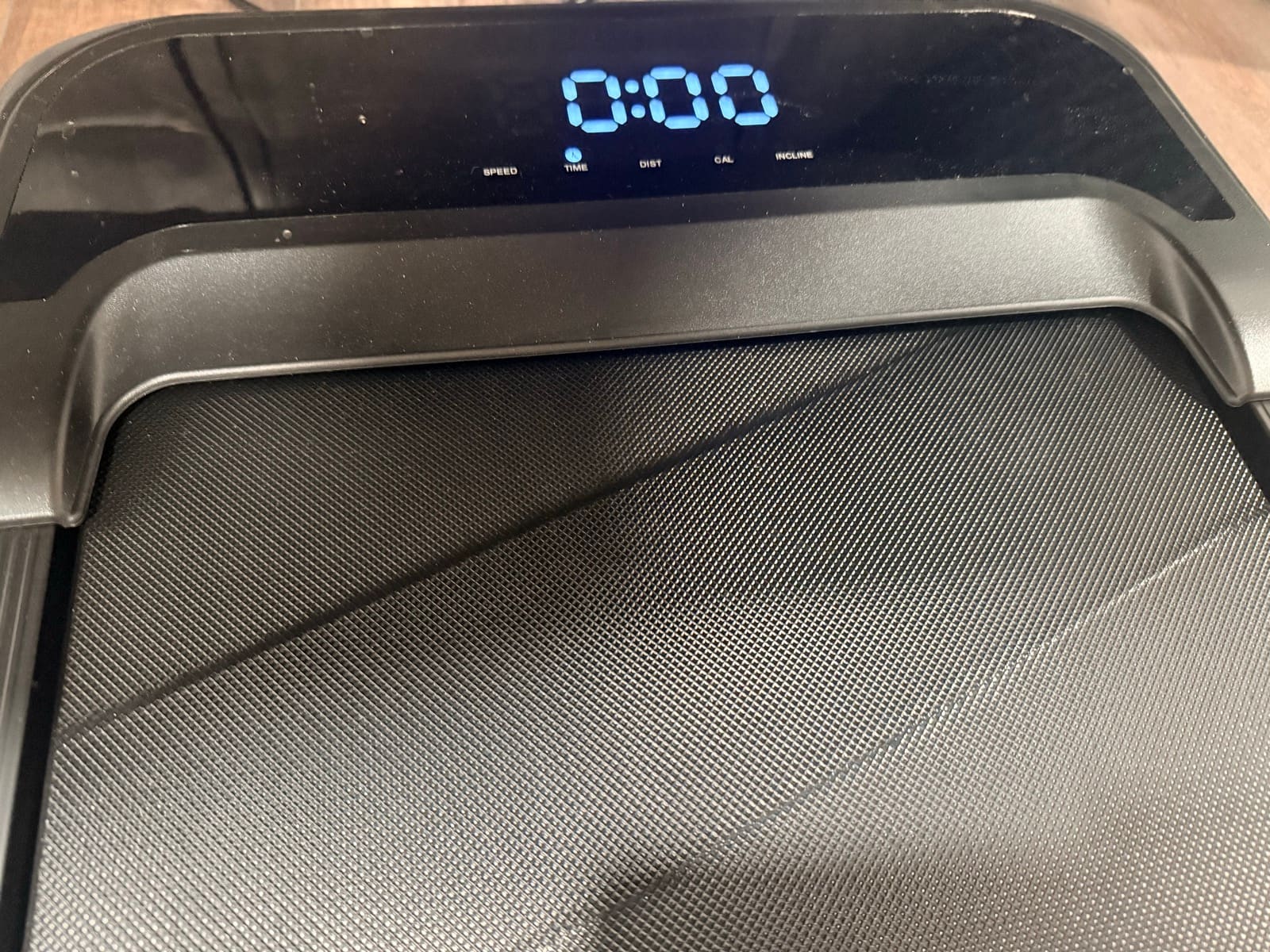
The remote is what ties the whole experience together. Speed up, slow down, change the incline, all without bending over or breaking stride. The buttons have a satisfying click and the response is immediate. Press the incline button and the pad tilts within a second or two. Same with speed changes.
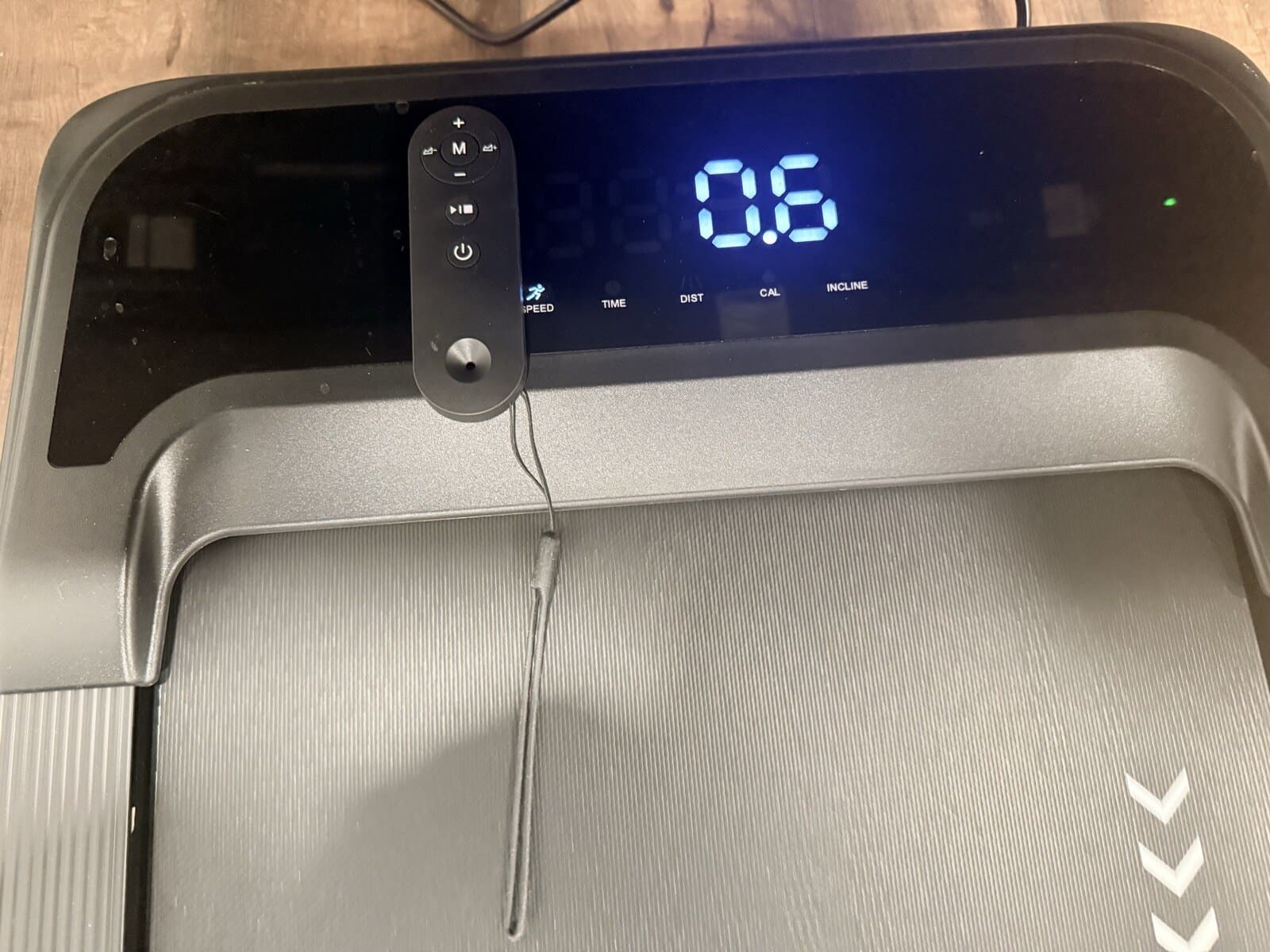
This matters more than you'd think. Without the remote, you'd have to stop walking, bend down, and press buttons on the pad itself every time you wanted to adjust. The remote turns the walking pad from a "set it and forget it" device into something you can actively manage throughout a session. I'll bump the speed up during a casual call and drop it back down when I need to unmute and talk. That kind of on-the-fly control is what makes this usable for real work.
The Incline Mechanism
The incline adjusts through a set of Z-shaped folding legs underneath the pad. They're sturdy, and the transition between flat and inclined is smooth. No wobble, no grinding.
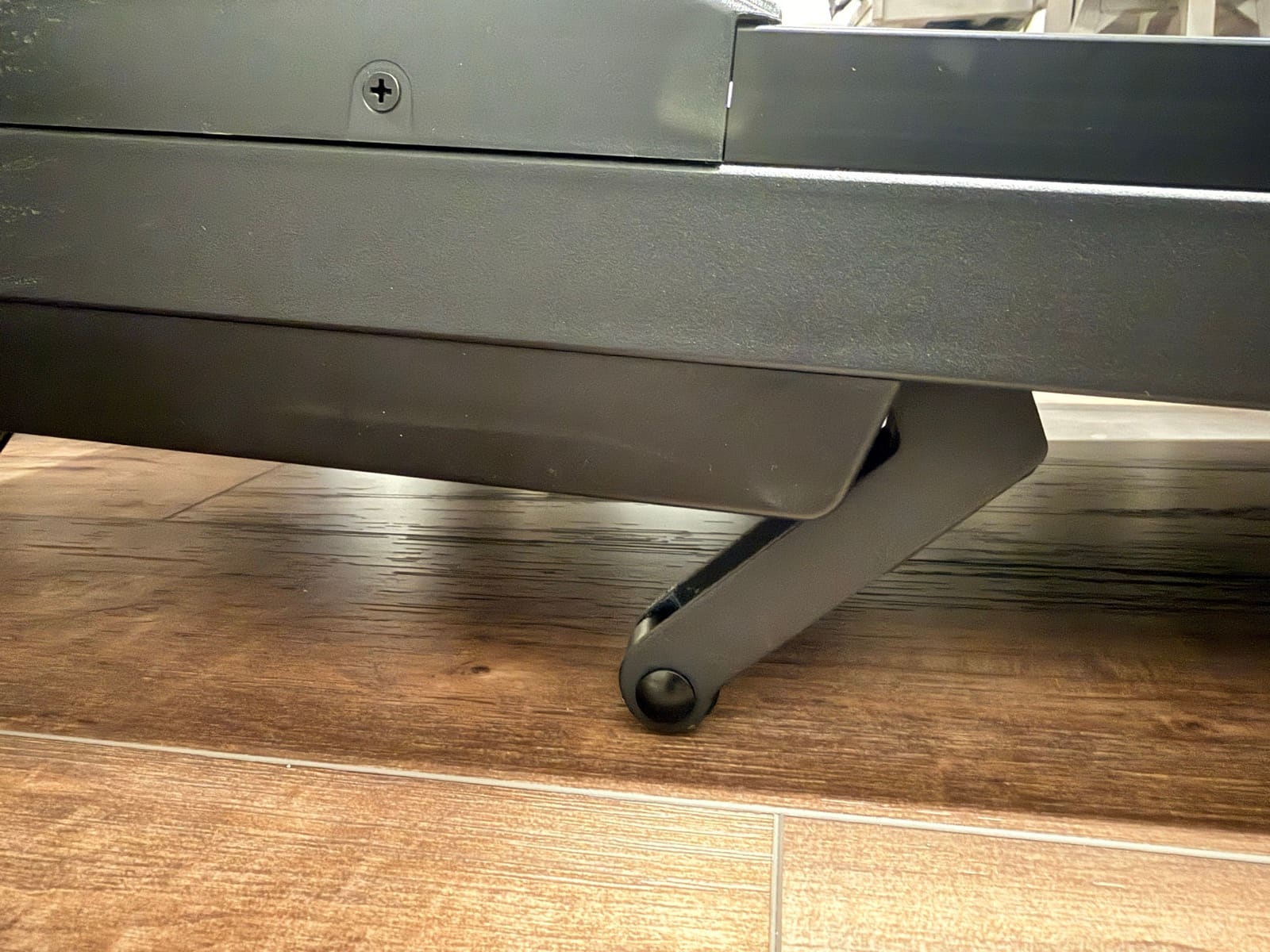
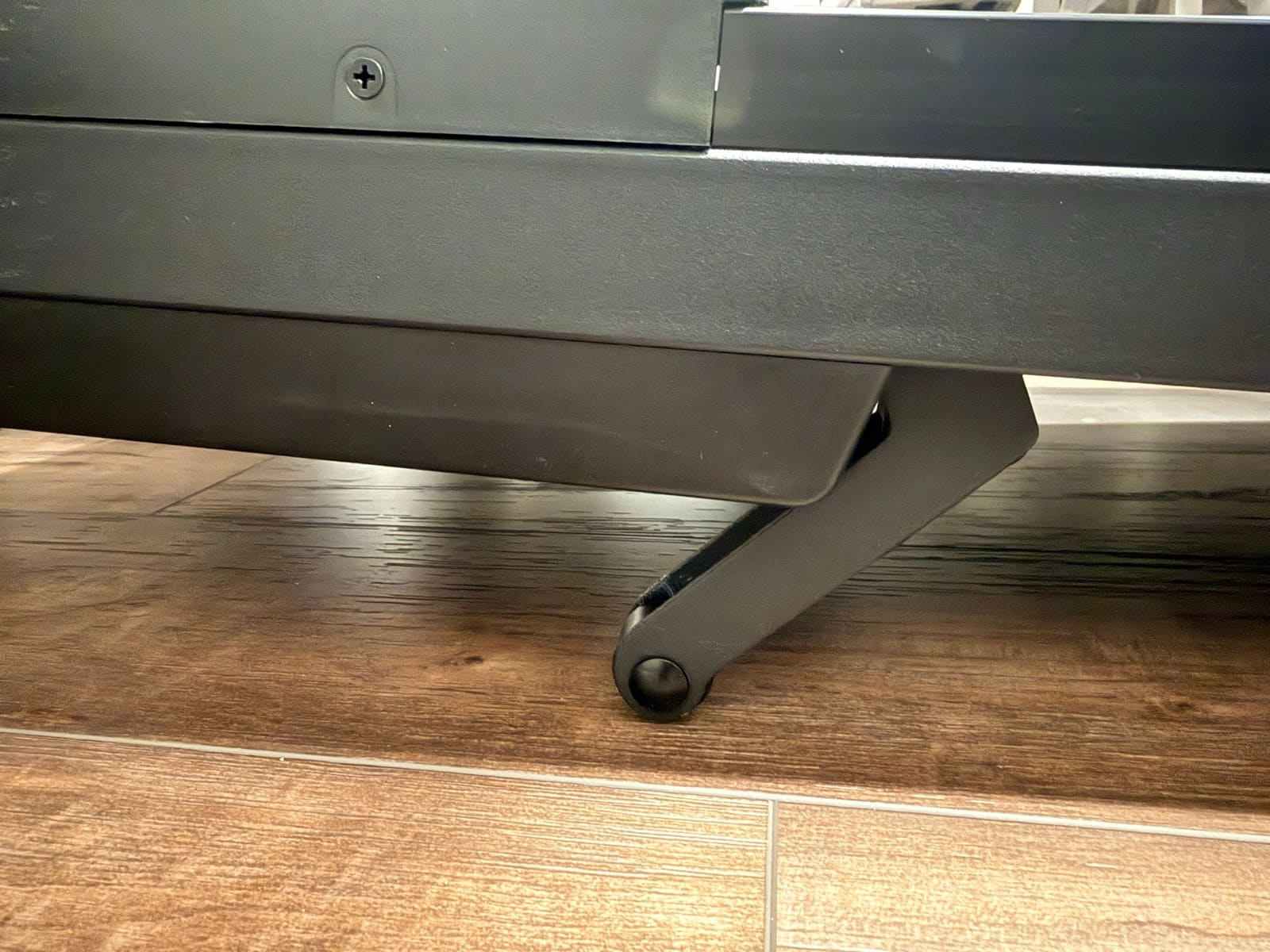
Adding incline makes a noticeable difference. Flat walking at 2 MPH barely feels like exercise after a few minutes. Add some incline and you'll feel it in your calves within the first 10 minutes. It's a simple way to increase the intensity without walking faster, which matters when you're trying to stay steady enough to work.
Fair warning: at max speed and full incline, it's intense. My son tried it and jumped off within seconds.
What It's Actually Like to Walk and Work
This is the part most reviews skip. They'll tell you the specs and the features, but they won't tell you which tasks actually work while walking. Here's what I found.
Conference calls are the ideal use case. You're mostly listening, occasionally talking, and your hands are free. Walking at 1.5 to 2 MPH during a Zoom call feels natural. It keeps you alert without competing for your attention. If I have a 30-minute standup or a team sync, the walking pad comes out every time.
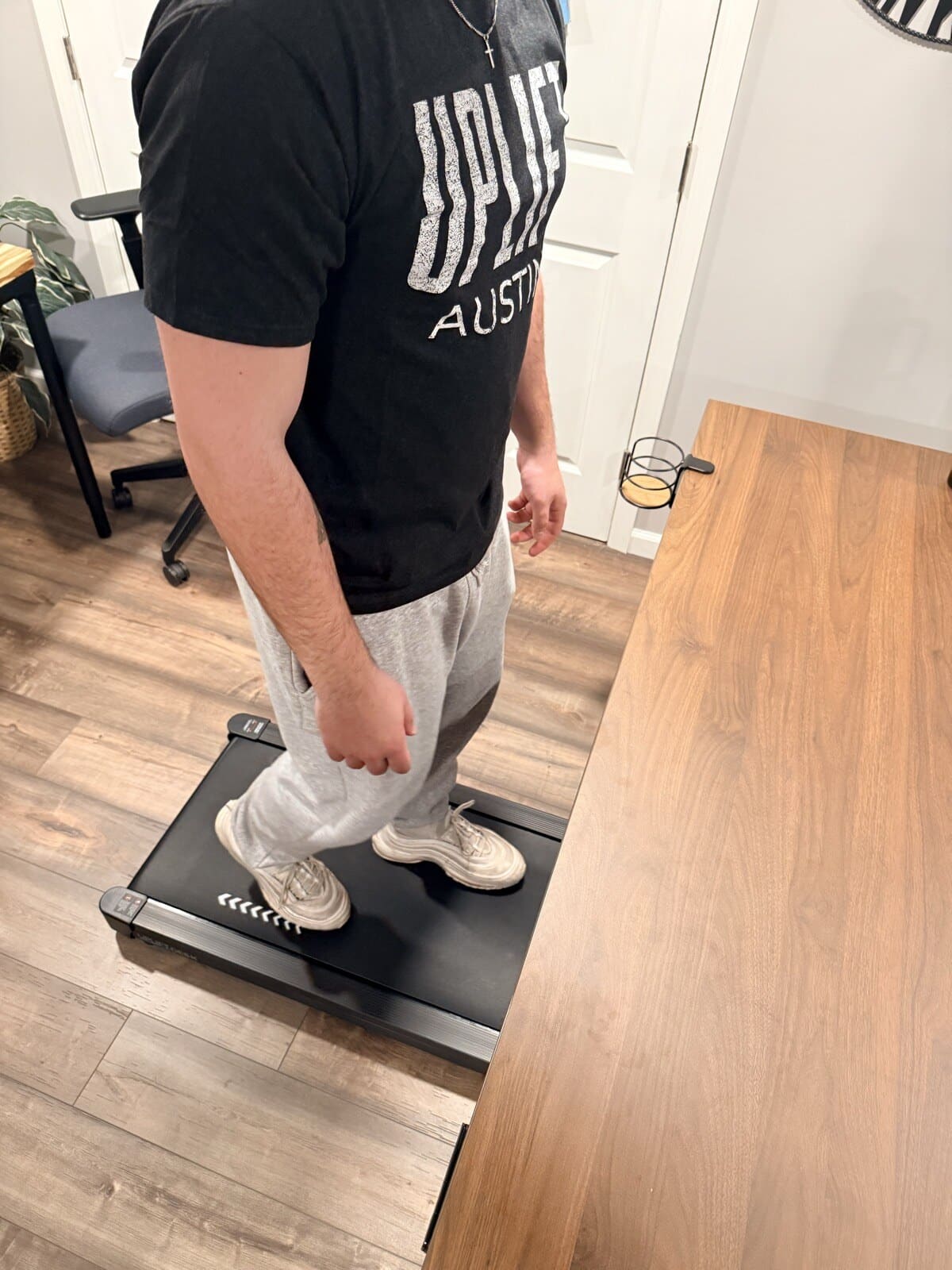
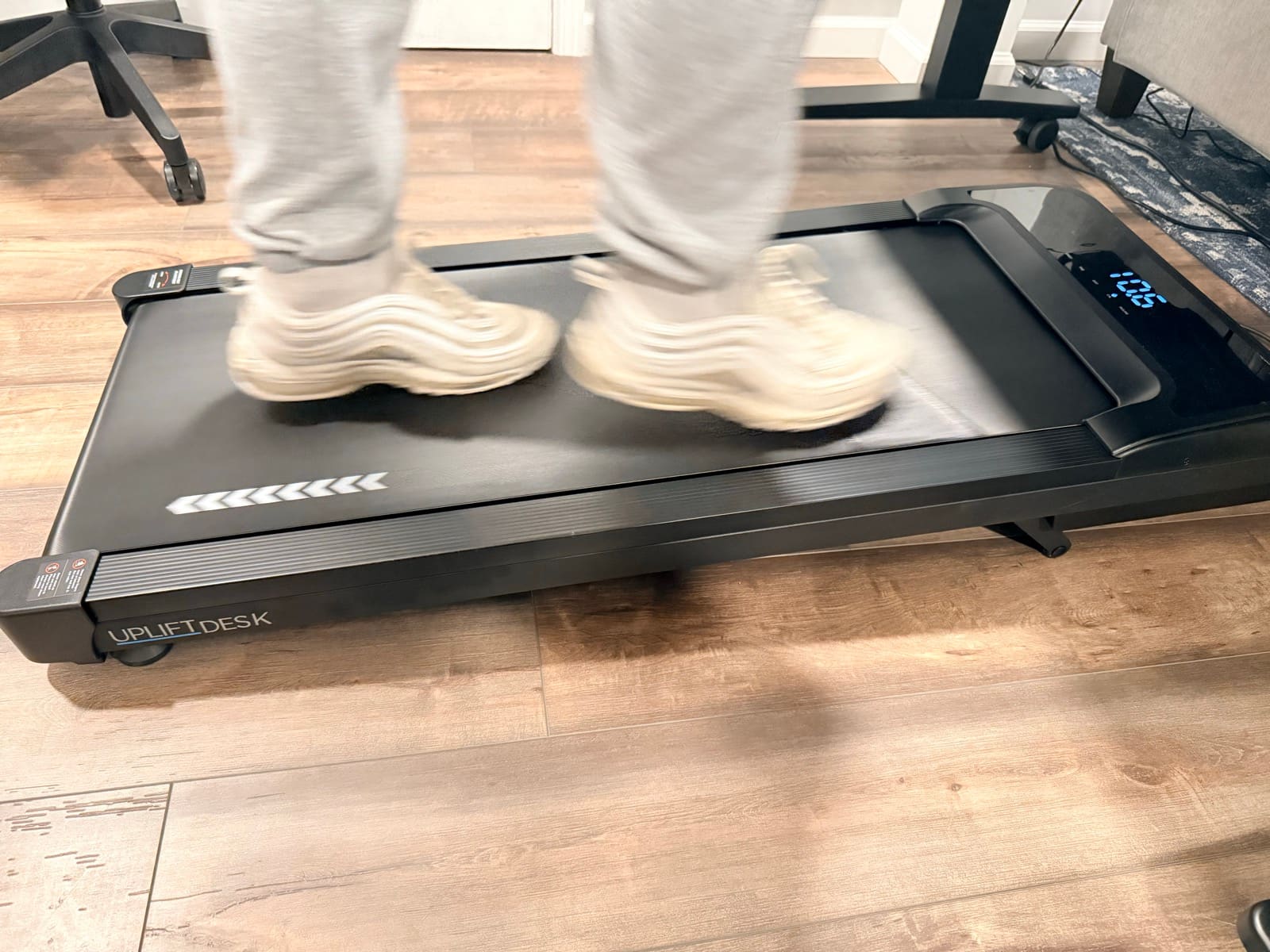
Typing and deep focus work is harder. I won't sugarcoat this. When I tried to write or code while walking, the movement pulled my attention. It's not that you can't type while walking. You can. But the quality of your focus drops. For email replies and Slack messages, it's fine. For anything that requires sustained concentration, I'd rather be sitting or standing still.
The pattern I settled into: slide the pad out for calls and light browsing, push it back when it's time to focus. That rotation between sitting, standing, and walking is where the real value shows up. You're not locked into any one position for hours.
Noise: Will Your Coworkers Hear It?
At walking speed (1.5 to 2.5 MPH), the motor produces a low hum. It's not silent, but it's quiet enough that it doesn't get picked up on Zoom audio. I've used it on multiple calls and nobody has mentioned hearing anything.
One thing to know: if you're on camera, people can tell you're walking. The slight movement is visible. Whether that matters depends on your workplace culture. For internal team calls, nobody cares. For a client presentation, you might want to stay still.
Portability: The Underrated Feature
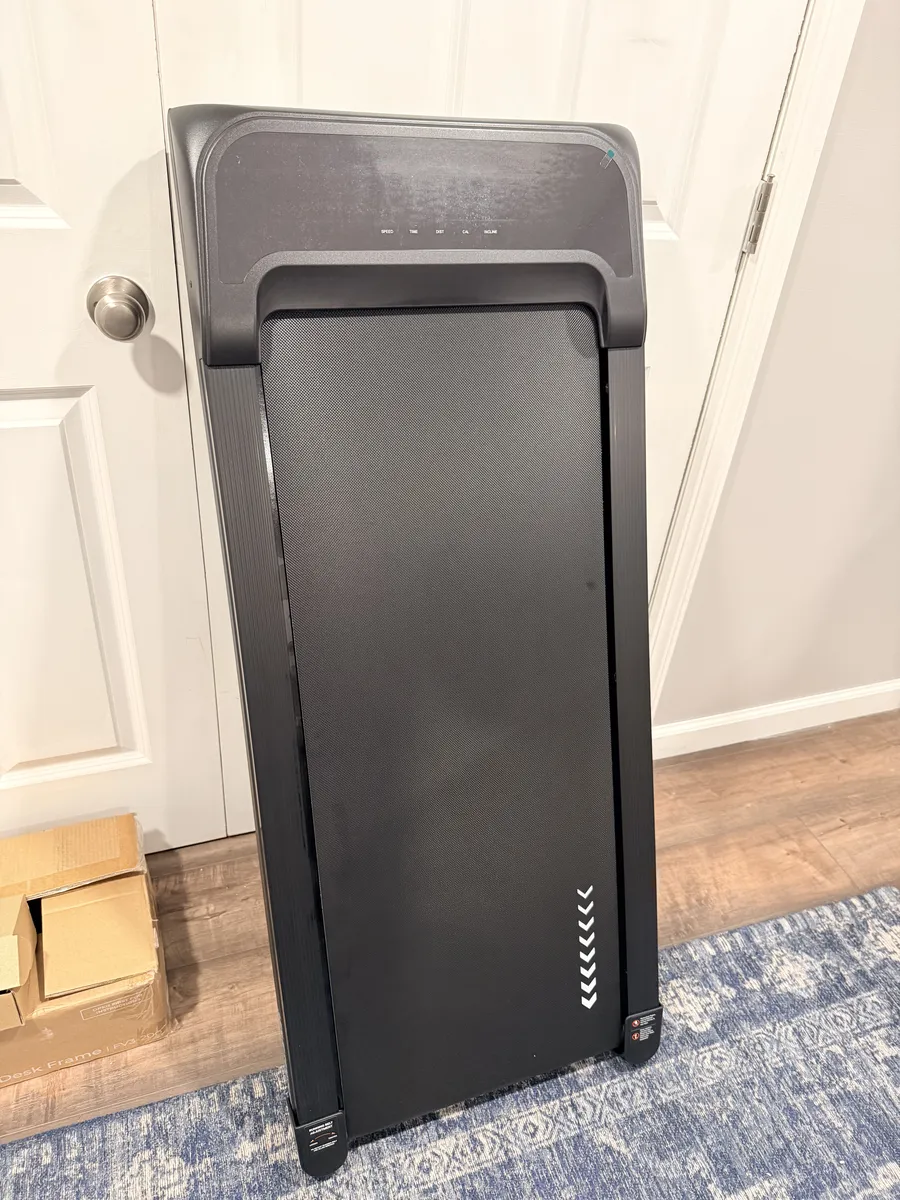
This is what makes the walking pad practical instead of just a novelty. It's not light, but the low profile and built-in wheels make it easy for one person to tilt and roll out of the way.
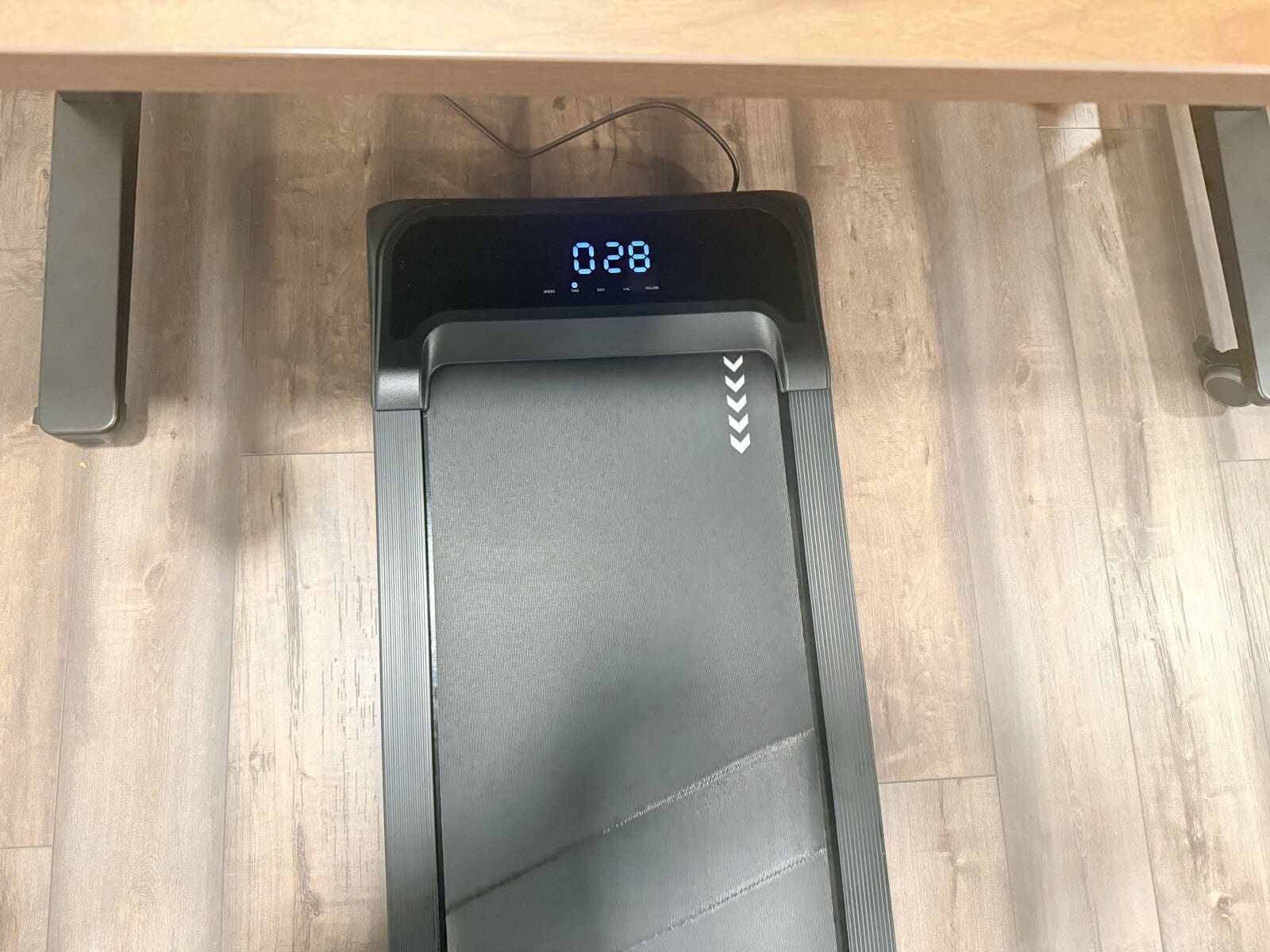
When you're done walking, tilt it up and roll it to the side. When you need floor space for your chair, it takes about 10 seconds to move. That's the difference between a walking pad that collects dust and one you actually use. If it's a production to set up and tear down, you won't bother. The UPLIFT pad removes that friction.
Footwear
Sneakers are the way to go. I've tried it in socks and it works, but you don't get the same grip or support. If you're planning to walk for 30+ minutes, wear shoes. Keep a pair of walking shoes under your desk and swap into them when the pad comes out.
Build Quality
The frame is solid matte black with clean lines. It matches the V3 desk aesthetic well. The UPLIFT DESK branding on the front is subtle. The belt surface has a textured grip that holds up to daily use without showing scuff marks.
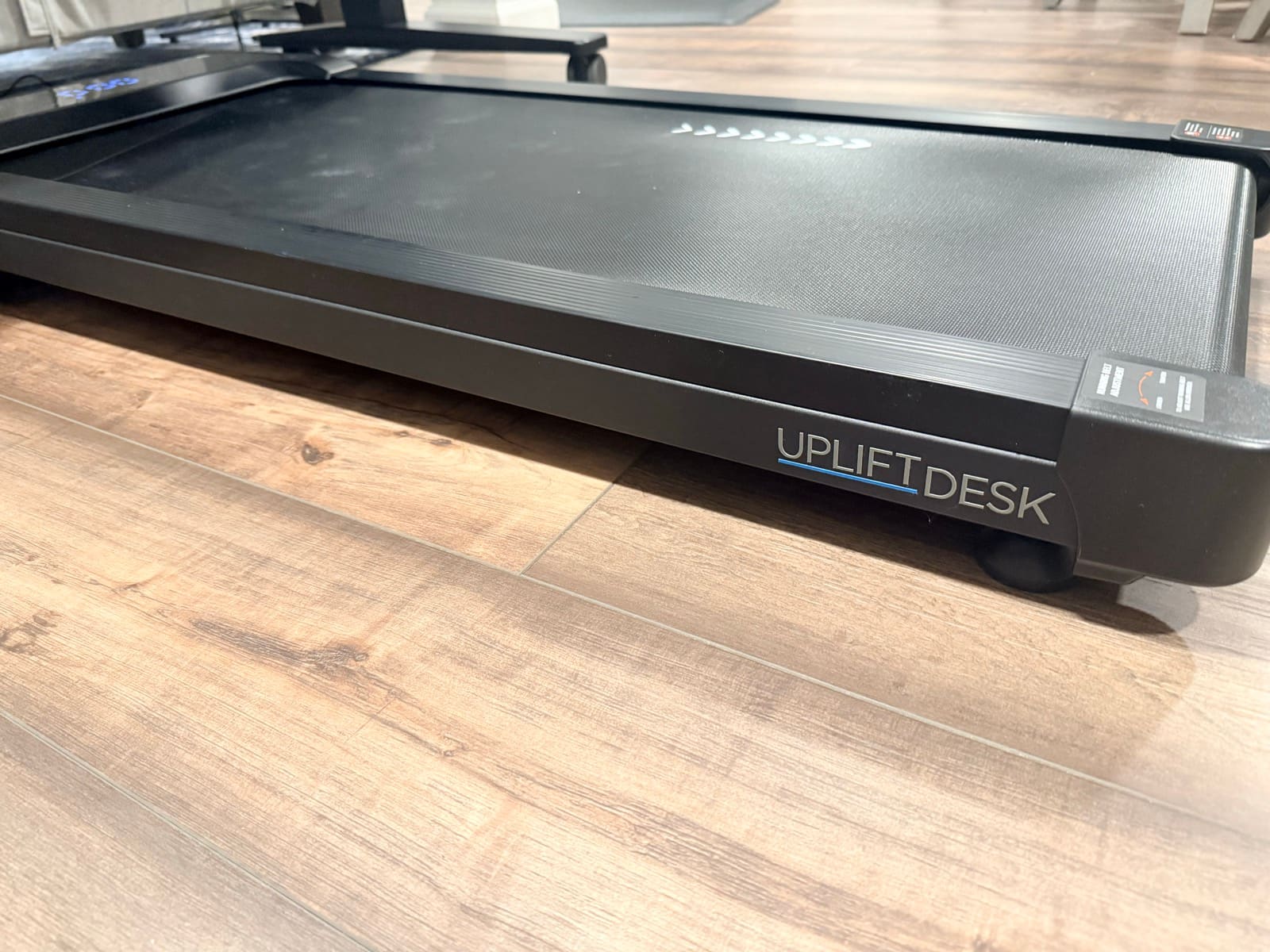
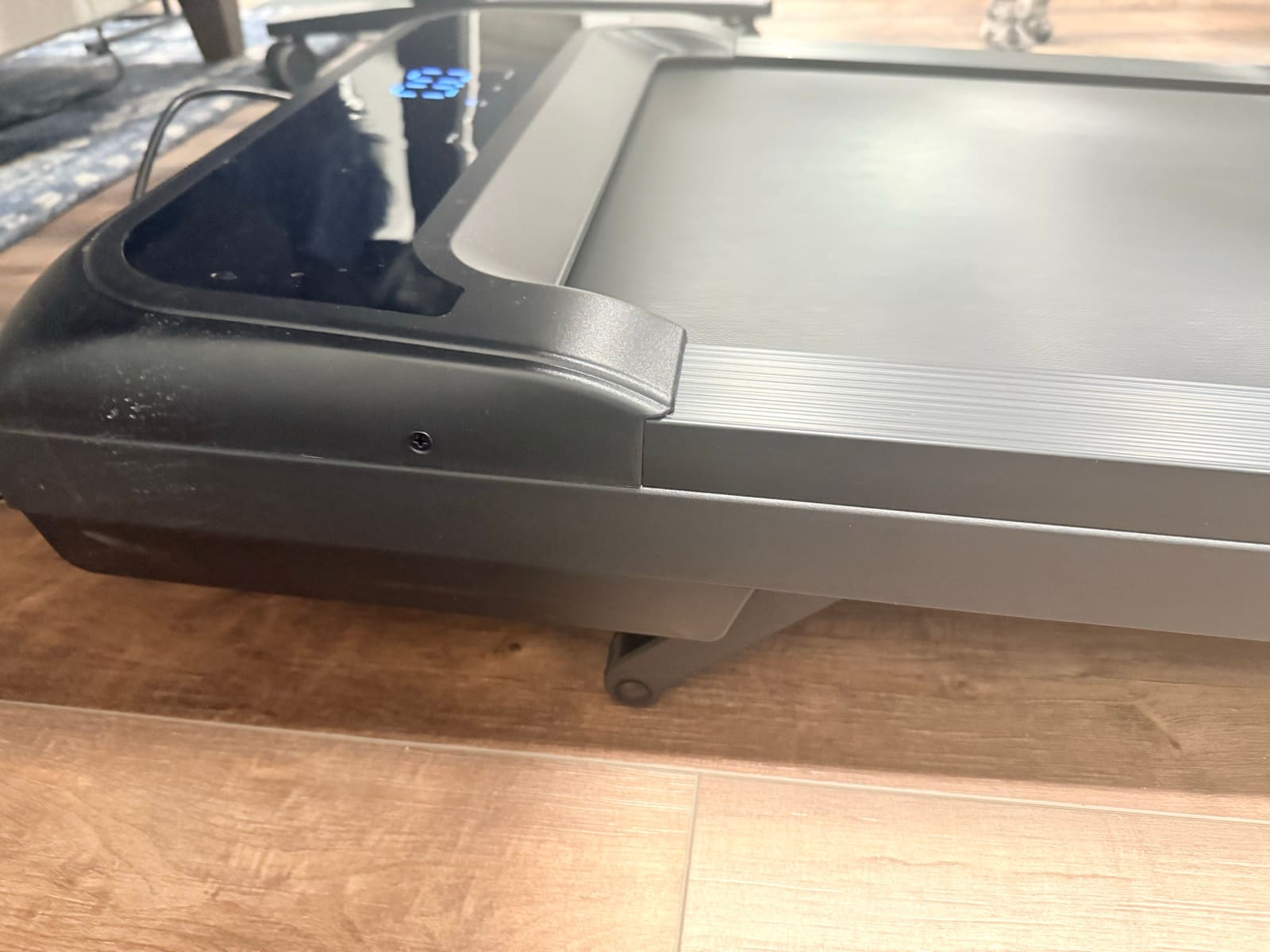
The overall height of the pad is about 5 inches. That means your standing desk needs to go 5 inches higher than your normal standing position. The V3 has more than enough range to handle this, but check your desk's max height if you're using a different frame.
Who Should (and Shouldn't) Buy This
Good fit:
- Remote workers with frequent calls. This is the ideal use case
- Anyone who already owns a standing desk and wants a third position option
- People who struggle to hit daily step goals while working from home
Not the best fit:
- Anyone expecting to walk 8 hours a day while working. That's not realistic for most tasks
- Workers who spend most of their day doing precision mouse or keyboard work
- Small offices where there's nowhere to store the pad when it's not in use
Buying Tips
If you're considering the walking pad, check the UPLIFT Desk Walking Pad + Desk Bundle. UPLIFT sometimes offers a discount when you buy the pad with a standing desk. Also worth noting: you'll want the desk's Advanced Keypad so you can save separate memory presets for standing height (without pad) and walking height (with pad). The 5-inch height difference is significant enough that you don't want to eyeball it every time.
Key Specs
| Spec | Value |
|---|---|
| Price | $349 |
| Max Speed | 4 MPH |
| Incline | Motorized, up to 7% grade (via remote) |
| Weight Capacity | Check UPLIFT product page for current specs |
| Noise Level | Low hum at walking speeds, not picked up on video calls |
| Remote | Wireless, controls speed and incline |
| Display | LED (speed, time, distance, calories, incline) |
| Best Paired With | Standing desk with 45"+ max height |
| Warranty | UPLIFT Desk warranty |
Frequently Asked Questions
Can you actually work while using a walking pad?
It depends on the work. Conference calls, email, Slack, and light browsing all work well at 1.5 to 2.5 MPH. Tasks that require sustained focus like writing, coding, or detailed spreadsheet work are harder. The movement competes with your concentration. The best approach is rotating between walking, standing, and sitting based on what you're doing.
Is the UPLIFT Walking Pad quiet enough for video calls?
The motor hum at walking speed doesn't get picked up on Zoom or Teams audio. Your coworkers won't hear it. However, if you're on camera, the subtle movement is visible. For internal calls it's a non-issue. For client-facing presentations, you might want to pause.
Do I need to adjust my desk height for the walking pad?
Yes. The pad adds about 5 inches of height, so your desk needs to go 5 inches higher than your normal standing position. If your standing desk has memory presets, save one for walking height and one for standing height. Check that your desk's max height can accommodate the extra 5 inches before buying.
What shoes should I wear on a walking pad?
Sneakers or walking shoes are recommended. You can walk in socks, but you lose grip and support, especially during longer sessions. Keep a pair of walking shoes at your desk and swap into them when you pull the pad out.
How often will I actually use a walking pad?
This is the honest question nobody asks. If the pad is easy to move in and out, you'll use it more. The UPLIFT pad's built-in wheels and low profile make it quick to set up and put away, which removes the biggest barrier to daily use. Pairing it with a specific daily routine (like always walking during your morning standup) helps build the habit.
Is the incline worth it over a flat walking pad?
For desk use, yes. Flat walking at low speeds barely registers as exercise after the first week. Incline lets you increase intensity without walking faster, which is important when you're trying to stay stable enough to use a mouse or read a screen. It also adds variety. You can go flat for easy calls and add incline when you want more of a workout.
Related Guides
- Best Walking Pads with Incline for Standing Desks: Comparison of inclining walking pads
- UPLIFT V3 Standing Desk Unboxing: Full unboxing where this walking pad first appeared
- Which UPLIFT Standing Desk Is Right for You?: UPLIFT lineup comparison
- Best Ergonomic Desk Setup: Complete Guide: Full workstation walkthrough