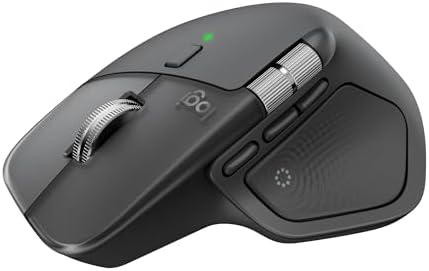

The Logitech MX Master series has been the default productivity mouse for over a decade. With the MX Master 4 now on shelves at $119.99, buyers face a real dilemma: pay full price for the latest model, or grab the MX Master 3S at its new reduced price of unavailable. The answer depends entirely on how you work and what you value in a daily-use mouse. Both mice share the same core sensor and multi-device workflow, but the MX Master 4 introduces three upgrades that justify its premium for a specific type of user.
Heavy spreadsheets, code review, or creative software all day: MX Master 4 ($119.99). The haptic scroll wheel and per-app gesture shortcuts pay for the $30-40 premium when you scroll thousands of rows or work across 3+ complex apps daily.
Most people upgrading from a generic mouse: MX Master 3S (unavailable). Same 8,000 DPI sensor, same 70-day battery, same multi-device switching. The 3S at unavailable is the smarter buy unless you specifically need the haptic wheel.
Already own a 3S you like: Don't upgrade. The differences are real but incremental. The 3S has years of proven reliability and the same core sensor. Wait until your 3S reaches end of life.
Which One for Your Work
Most of the spec sheet is identical. Use this to skip to the right pick:
| Your Workflow | Best Pick | Price | Why |
|---|---|---|---|
| Heavy spreadsheets / financial models | MX Master 4 | $119.99 | Haptic feedback at every row notch |
| Code, design, 3+ creative apps daily | MX Master 4 | $119.99 | Actions Ring per-app gesture shortcuts |
| Browser, email, writing, light work | MX Master 3S | unavailable | Same workflow, $30-40 less |
| Multi-device (mac + PC + iPad) | Either | Varies | Identical 3-device support |
| Heavy horizontal scrolling (timelines, wide sheets) | MX Master 3S | unavailable | Physical thumb wheel beats Actions Ring |
| Already own a 3S | Keep your 3S | Varies | Upgrades are incremental |
Head-to-Head Spec Comparison
Based on spec comparisons and reviewer feedback, here's how the MX Master 4 and MX Master 3S compare across every key specification.
| Feature | MX Master 4 | MX Master 3S |
|---|---|---|
| Price | $119.99 | unavailable |
| Sensor | Darkfield 8,000 DPI | Darkfield 8,000 DPI |
| Max DPI | 8,000 | 8,000 |
| Scroll Wheel | Haptic MagSpeed | Electromagnetic MagSpeed |
| Haptic Feedback | Yes (variable intensity) | No |
| Programmable Buttons | 8 (including Actions Ring) | 7 |
| Connectivity | Bluetooth + Logi Bolt | Bluetooth + Logi Bolt |
| Multi-Device | 3 devices (Easy-Switch) | 3 devices (Easy-Switch) |
| Battery Life | Up to 70 days | Up to 70 days |
| Fast Charging | USB-C (1 min = 3 hrs) | USB-C (1 min = 3 hrs) |
| Weight | 150g | 141g |
| Quiet Clicks | Yes | Yes (90% quieter than MX Master 3) |
| Surface Tracking | Glass and virtually any surface | Glass and virtually any surface |
| Side Scroll Wheel | No (replaced by Actions Ring) | Yes (physical thumb wheel) |
| Software | Logi Options+ | Logi Options+ |
| Surface Material | Rubber-coated (dust resistant) | Soft-touch plastic |
| Warranty | 2 years | 2 years |
The spec sheet reveals something important: these two mice share the same sensor, the same battery life, the same connectivity, and the same multi-device capabilities. The differences are concentrated in three areas: the scroll wheel technology, the input method on the thumb area, and the surface material.
What's New in the MX Master 4
The MX Master 4 isn't a ground-up redesign. It's a targeted upgrade in three specific areas that Logitech identified as opportunities to differentiate from the already-excellent 3S.
Haptic MagSpeed Scroll Wheel
The original MagSpeed wheel in the 3S uses electromagnetic resistance to switch between ratcheted and free-spinning modes. It's excellent. The MX Master 4 takes this further by adding haptic feedback, which means the wheel produces subtle, programmable vibrations as you scroll. Reviewers note that the haptic feedback provides noticeably more precise control when scrolling through long documents or spreadsheets. You can feel each row click past your finger, or switch to a smooth free-spin for rapid navigation through hundreds of pages.
The haptic intensity is adjustable through Logi Options+ software. At low settings, it adds a faint tactile texture. At high settings, each scroll notch feels distinct and deliberate. Whether this matters to you depends on how much time you spend in documents, spreadsheets, and code editors. If you scroll through hundreds of lines daily, the haptic feedback is a clear improvement. If you mostly click through browser tabs and short emails, you'll barely notice the difference.
Actions Ring Gesture System
The most controversial change in the MX Master 4 is the Actions Ring, which replaces the physical side scroll wheel found on the 3S. Instead of a dedicated horizontal scroll wheel under your thumb, you get a touch-sensitive ring that supports customizable gestures per application. Swipe up in Photoshop to zoom in. Swipe left in your browser to go back. Rotate in Premiere Pro to scrub through a timeline.
According to early adopters, the Actions Ring takes about a week to feel natural. The initial learning curve is real, and users who relied heavily on the 3S's side scroll wheel for horizontal navigation in spreadsheets or timelines will feel its absence. However, once configured for your specific workflow in Logi Options+, the Actions Ring offers more versatility than the single-function side wheel it replaced. You can assign different gestures per application, effectively giving you dozens of shortcuts accessible without moving your hand to the keyboard.
The trade-off is clear: you lose a dedicated, intuitive horizontal scroll control and gain a more flexible but less immediately intuitive gesture surface.
Redesigned Surface Material
The MX Master 4 uses a new rubber-coated surface material that resists dust and fingerprint accumulation better than the 3S's soft-touch plastic. Long-term owners report the 3S tends to develop a slightly oily sheen on the thumb rest and palm area. The MX Master 4's coating stays cleaner and grippier over time. It's a small change, but noticeable if you use your mouse eight or more hours per day.
The MX Master 4 weighs 150g compared to the 3S's 141g. The 9g increase is imperceptible in daily use and comes from the added haptic motor and Actions Ring hardware.
Where the MX Master 3S Still Wins
The MX Master 3S isn't the inferior mouse here. It holds clear advantages in several areas that matter to everyday users.
Price: $30-40 Less
This is the most straightforward advantage. Since the MX Master 4 launched, the 3S has dropped to unavailable at most retailers. For a mouse with the same 8,000 DPI Darkfield sensor, the same 70-day battery life, and the same multi-device switching, that's a significant saving. The 3S delivers nearly the full MX Master 4 experience at a lower price point.
Same Core Sensor and Tracking
Both mice use Logitech's Darkfield 8,000 DPI sensor, which tracks on virtually any surface including glass. On paper and according to reviewer reports, cursor precision, acceleration curves, and surface compatibility are identical between the two models. The sensor isn't the upgrade path here.
Proven Reliability
The MX Master 3S has been on the market for years. It has accumulated thousands of reviews across retailers, and its long-term durability is well documented. The MX Master 4 is brand new, and while Logitech's track record is strong, the 3S has the advantage of a known reliability profile. Switch mechanisms, scroll wheel longevity, and Bluetooth stability have all been validated by a massive user base over time.
Same Multi-Device Workflow
Both mice connect to three devices simultaneously and switch between them with the Easy-Switch button on the bottom. Both support Bluetooth and Logi Bolt USB receiver. Both work across Windows, macOS, iPadOS, and ChromeOS. If your primary reason for buying an MX Master is seamless multi-device switching, the 3S does this identically to the 4.
Physical Side Scroll Wheel
The 3S's dedicated thumb scroll wheel provides horizontal scrolling that's immediately intuitive. No configuration needed, no learning curve. For users who work in wide spreadsheets, video timelines, or design canvases, having a physical horizontal scroll control is a clear advantage over the MX Master 4's Actions Ring, which requires setup and muscle memory to replicate that functionality.
Is the Price Difference Worth It?
The $30-40 gap between the MX Master 4 ($119.99) and the MX Master 3S (unavailable) comes down to two features: haptic scroll and the Actions Ring.
If you scroll through long documents for hours daily (financial models, codebases, research papers), the haptic scroll wheel's precision feedback pays for itself in comfort and accuracy over thousands of hours. If you work across 3+ complex applications and would actually use per-app gesture shortcuts, the Actions Ring replaces keyboard shortcuts you'd otherwise have to memorize.
If neither of those describes your workflow, the $30-40 buys you a quality desk mat or a Logi Bolt receiver with money left over. The 3S at unavailable is the better value for most people.
Who Should Buy Which
Get the MX Master 4 if:
- You're a creative professional working across Figma, Photoshop, Illustrator, or Premiere Pro daily and want per-app gesture shortcuts
- You scroll through hundreds of rows in spreadsheets or code and want haptic precision feedback
- You're a first-time MX Master buyer with no muscle memory for the 3S's side scroll wheel
- You want the latest build quality with dust-resistant coating and longest remaining support life
Get the MX Master 3S if:
- You want a premium productivity mouse without paying the premium price (unavailable vs $119.99)
- You're upgrading from a basic mouse and want the biggest quality improvement per dollar
- You rely on horizontal scrolling daily and prefer a dedicated physical scroll wheel
- You need multi-device switching and the 3S handles it identically to the 4
- You prefer a product with years of proven real-world reliability
Buying Tips
-
Check both prices on the day you plan to buy. The MX Master 3S price fluctuates between $85 and $100 depending on retailer and color option. The MX Master 4 occasionally dips to $115 during sales. A $15 gap feels different from a $45 gap.
-
Look for bundle deals. Logitech frequently offers discounts when you purchase an MX Master mouse with an MX Keys keyboard. The combined savings can effectively reduce the mouse cost by $15-25.
-
Consider your primary use case first. If you spend most of your day in two or three applications with complex shortcuts, the MX Master 4's Actions Ring may save you more time than the $30-40 price difference costs. If you mostly browse, email, and write documents, the 3S covers those workflows completely.
-
Try before you buy if possible. The haptic scroll wheel and Actions Ring are features that feel very different in person than they sound on paper. If you have access to a retail display unit, spend five minutes testing the scroll feel and gesture ring before committing.
-
Factor in the Logi Bolt receiver. If you already own a Logi Bolt USB receiver from another Logitech device, both mice will pair with it. If not, the receiver is sold separately for about $10. Bluetooth works fine for single-device use, but the Bolt receiver offers lower latency and more reliable connectivity.
-
Watch for holiday and Prime Day pricing. Both models typically see their lowest prices during Amazon Prime Day (July), Black Friday, and back-to-school sales in August. If you can wait, significant discounts are common on the 3S during these events.
-
Pair your mouse with an ergonomic desk setup. A quality mouse works best on a stable, clean surface. The UPLIFT V3 Standing Desk offers 50+ desktop materials and the UPLIFT Desk 15-year warranty covers the frame and motors. For vertical mouse alternatives, check out the UPLIFT Desk Wave Vertical Mouse ($34+) if wrist discomfort is a concern, or see the Logitech Lift vs MX Vertical comparison for Logitech's two vertical options head-to-head.
Frequently Asked Questions
Is the MX Master 4 worth the upgrade from the 3S?
For most users, no. If your MX Master 3S is working well and you're satisfied with its scroll wheel and button layout, the MX Master 4 doesn't solve a problem you currently have. The sensor, battery, and connectivity are identical. The upgrades are real but incremental. The MX Master 4 is best justified as a first-time purchase or as a replacement when your 3S reaches end of life, rather than a mid-life upgrade.
Can I use MX Master 4 and 3S with the same Logi Bolt receiver?
Yes. The Logi Bolt USB receiver supports pairing with multiple Logitech devices simultaneously. You can have both mice paired to the same receiver and switch between them, or pair each to different devices through the receiver. Each mouse can also connect independently via Bluetooth without a receiver.
Does the MX Master 4 work on glass?
Yes. Both the MX Master 4 and MX Master 3S use Logitech's Darkfield sensor, which tracks reliably on glass surfaces at least 4mm thick. This has been a consistent feature of the MX Master line since the original model, and the MX Master 4 maintains it without any changes to tracking capability.
What's the difference between haptic and electromagnetic scroll?
The MX Master 3S's electromagnetic scroll wheel uses magnets to create resistance, allowing it to switch between ratcheted (click-by-click) and free-spinning modes. It's a mechanical feel generated by magnetic force. The MX Master 4's haptic scroll wheel adds a vibration motor that produces programmable tactile feedback on top of the magnetic system. The haptic layer gives you adjustable scroll texture that can simulate fine-grained notches, smooth resistance, or anything in between through software. In practical terms, haptic scroll provides more information through your fingertip while scrolling, which improves precision in long documents.
Should I wait for a sale on the MX Master 4?
If you're not in a rush, waiting is a reasonable strategy. Logitech's mice typically see their first significant discounts 3-4 months after launch, and the MX Master 4 will likely follow this pattern. However, the MX Master 3S is available at its reduced price right now, and its price is unlikely to drop much further. If value is your priority, the 3S at its current price is already an excellent deal regardless of future MX Master 4 pricing.
Can I use either mouse with a Mac?
Yes. Both mice offer full macOS compatibility with all features available through Logi Options+ software. Gesture support, per-application button customization, and multi-device switching all work on macOS. The mice also support iPadOS for tablet use, though gesture and button customization is more limited on iPad.
How long does the battery last on each?
Both the MX Master 4 and MX Master 3S offer up to 70 days of battery life on a full charge. Both support USB-C fast charging, where 1 minute of charging provides approximately 3 hours of use. Based on user reports, real-world battery life with Bluetooth connectivity averages 50-60 days with moderate daily use of 6-8 hours, which is consistent across both models.
Is the Actions Ring gimmicky or actually useful?
It depends on your workflow. Users who work primarily in one or two simple applications tend to find the Actions Ring unnecessary and miss the 3S's side scroll wheel. Users who work across three or more complex applications, particularly creative tools like Photoshop, Premiere Pro, and Figma, find the per-app gesture customization time-saving after the initial learning curve. The Actions Ring isn't a gimmick, but it's a power-user feature that requires investment in configuration and muscle memory before it pays off. If you aren't willing to spend a week customizing and learning gestures, the 3S's simpler button layout will serve you better.
The Verdict
The Logitech MX Master 4 is a better mouse than the MX Master 3S. The haptic scroll wheel is more precise, the Actions Ring is more versatile than a side scroll wheel once configured, and the build quality improvements are real. But "better" doesn't always mean "worth the extra money."
For most people buying a productivity mouse today, the MX Master 3S at unavailable is the recommendation. It has the same sensor, the same battery life, the same multi-device support, and a simpler, more intuitive button layout. The $30-40 you save can go toward a quality desk mat or a Logi Bolt receiver.
The MX Master 4 earns its price for users who will actively use the Actions Ring across multiple applications and who value the improved scroll precision for heavy document and spreadsheet work. If that describes your daily workflow, the MX Master 4 at $119.99 is a sound investment in a tool you'll use for thousands of hours.
The core experience is nearly identical based on specs and reviewer consensus. You can't go wrong with either one. The question is whether the MX Master 4's specific upgrades align with how you actually work, not just how you think you might work. If you're still weighing other shapes and grips, the best wireless mouse for work guide ranks both MX Masters against vertical and budget picks.
All recommendations are based on specification analysis, expert reviews, and owner feedback, not personal testing.
Related Guides
- Best Wireless Mouse for Productivity: Full roundup of 7 mice including vertical options
- Best Ergonomic Keyboards for Home Office: Complete your input setup
- Best Desk Mats for Home Office: A smooth tracking surface for your MX Master
- Best Ergonomic Desk Setup: Complete Guide: Full workstation walkthrough
- Best Standing Desks Under $700: Pair your mouse with a height-adjustable desk