Most remote workers spend 5-15 hours per week on video calls, but look and sound like they're calling from a basement. Bad lighting, grainy webcams, and echoey laptop microphones make you look less professional and make meetings harder for everyone. The fix is straightforward: proper camera position, one good light source, a decent microphone, and a clean background. Total cost: $100-$400 depending on what you already have.
Best $200 setup: Logitech C920x webcam ($55-$70) + Logitech Litra Glow light ($50-$60) + RØDE NT-USB Mini mic ($80-$100). Takes 15 minutes to set up.
Best under $100: EMEET C960 webcam ($30-$40) + yAyusi Dual-Lamp clip-on light ($20-$30) + FIFINE AmpliGame mic ($35-$50). Most of the quality at half the price.
Why Your Video Call Setup Matters
Researchers at the University of British Columbia found that lighting quality and camera angle affect how competent and trustworthy people appear on video calls. Separately, a study published in the International Journal of Human-Computer Studies showed that poor audio quality reduces listener comprehension by up to 25% and increases fatigue in longer meetings.
The practical impact for remote workers:
- Better lighting = more engagement. When your face is well-lit, people make more eye contact with your video feed and pay closer attention to what you say.
- Good audio reduces meeting fatigue. Clear voice without echo or background noise means less cognitive load for everyone on the call.
- Professional appearance builds trust. Clients, managers, and teammates form impressions based on your video presence. Messy backgrounds and grainy video undermine credibility.
- You avoid being "that person." Every team has someone who sounds like they're in a wind tunnel or looks like a shadow. Don't be that person.
Step 1: Camera Position and Webcam Choice
The single biggest improvement to your video call appearance is getting the camera at eye level. Laptop cameras shoot from below, creating an unflattering upward angle that emphasizes your chin and nostrils. An external webcam mounted on top of your monitor puts the lens at eye height.
Camera Positioning Rules
- Mount the webcam on top of your primary monitor, centered. This gives a straight-on or very slightly downward angle, the most natural and flattering perspective.
- Keep the camera 18-24 inches from your face. Too close and your features distort (wide-angle lens effect). Too far and you become a small figure in a big room.
- Frame from mid-chest up. Your head should be in the upper third of the frame with some space above. This leaves room for natural hand gestures without going off-screen.
- Look at the camera lens when speaking, not at the other person's video feed on screen. This creates the appearance of direct eye contact.
Webcam Picks
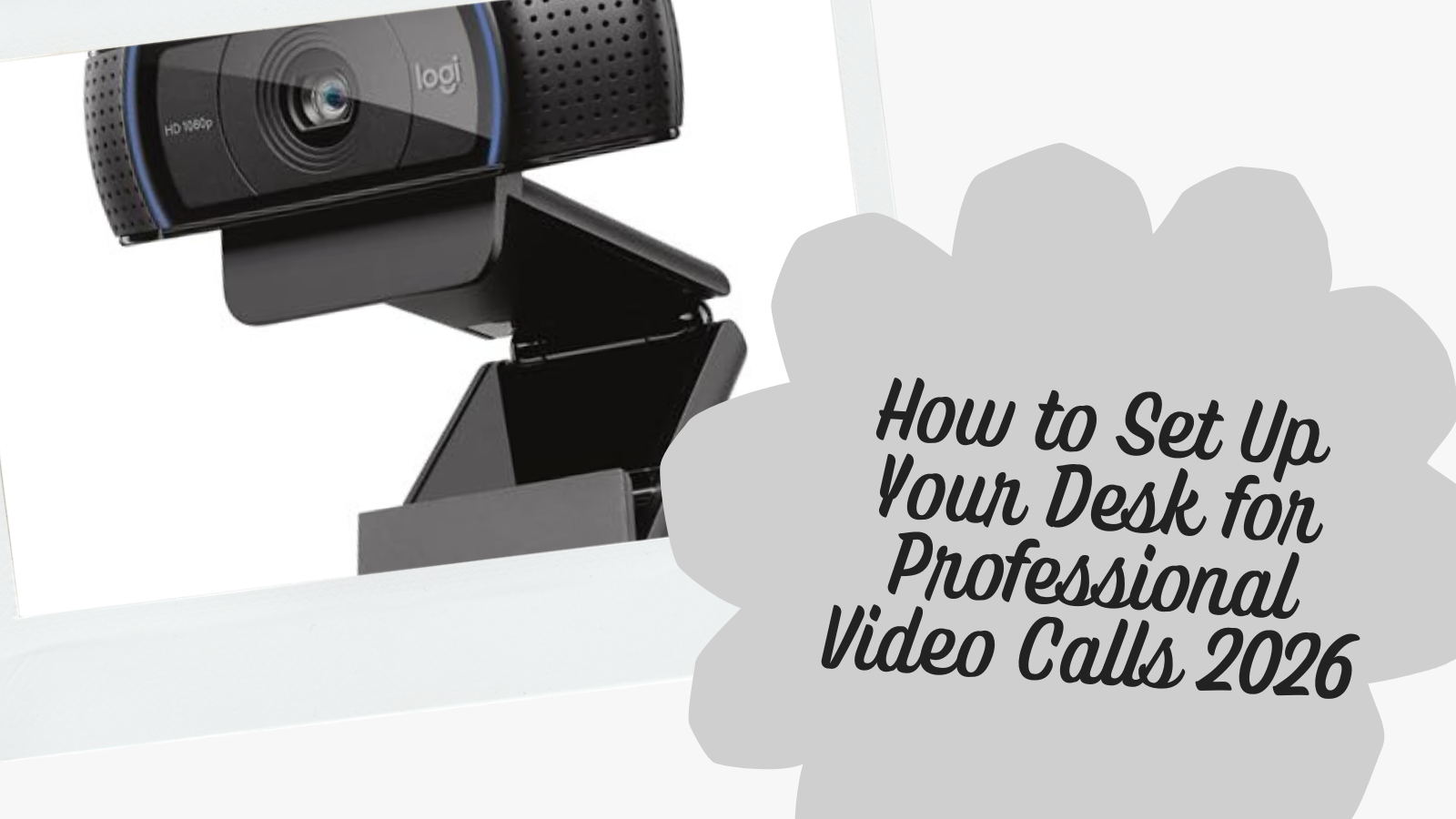
Best value: Logitech C920x HD Pro ($55-$70). The most popular webcam for remote work for good reason. 1080p/30fps with automatic light correction handles most office lighting conditions. Dual stereo mics are decent as a backup. Plug-and-play with every video call platform.
Premium: Elgato Facecam MK.2 ($130-$160). Sony sensor with HDR produces noticeably better image quality in mixed lighting. The Elgato Camera Hub software gives you manual control over exposure, white balance, and zoom, useful if your lighting is inconsistent. PTZ (pan-tilt-zoom) control lets you reframe without physically moving the camera.
Budget: EMEET C960 ($30-$40). Solid 1080p at a price that's hard to beat. The 90° wide-angle lens is wider than most webcams, which is good for showing more of your space or bad if you want a tighter headshot. Comes with a USB-A to USB-C adapter for newer laptops.
Step 2: Lighting Setup
Lighting makes a bigger visual difference than the webcam itself. A $30 webcam with good lighting looks better than a $150 webcam in a dark room. The goal is soft, even light on your face with no harsh shadows.
Lighting Positioning Rules
- Place your main light source directly behind your monitor or screen, facing you. This eliminates shadows under your eyes and nose.
- Never sit with a window behind you. Backlighting turns you into a silhouette. If your desk faces a wall with a window behind you, close the blinds during calls or add a front-facing light strong enough to overpower the backlight.
- Use diffused light, not direct light. Hard, direct light creates harsh shadows and makes you squint. Ring lights, light panels with diffusers, and bounced light all produce soft, flattering illumination.
- Match your light color temperature to the room. If your room has warm (yellowish) lighting, set your video light to 3000-4000K. If you use cool (bluish) overhead lights, set it to 5000-6500K. Mismatched color temperatures make your skin tone look unnatural.
Lighting Picks
Premium: Elgato Key Light ($180-$200). 2,800 lumens with adjustable color temperature (2900K-7000K) controlled via app on your phone or computer. The desk clamp mount positions the light behind your monitor at the right angle for face lighting. Bright enough to be your sole light source even in a dark room. The professional standard for streamers and remote workers.
Best monitor-mounted: Logitech Litra Glow ($50-$60). Clips to the top of your monitor like a webcam, positioning the light directly in front of your face. TrueSoft technology diffuses the light to eliminate harsh shadows. USB-powered, so no extra cables to the wall. The most elegant solution if you don't want another desk clamp.
Best budget ring light: Evershop 10" Ring Light ($25-$35). Overhead desk clamp mount with flexible gooseneck for positioning. The ring shape produces even, shadow-free lighting on your face. Includes a phone holder if you also take mobile video calls.
Best for laptops: yAyusi Dual-Lamp Conference Light ($20-$30). Two small light bars that clip directly to your laptop screen or monitor bezel. USB-powered from your laptop, so there's zero desk footprint. The dual-bar design lights both sides of your face evenly. The easiest possible setup: clip them on and go.
For a deeper look at desk lighting options beyond video calls, see our desk lamps guide. If you're deciding between a screen-mounted task light and a movable lamp, the monitor light bar versus desk lamp comparison explains why a light bar won't replace face lighting. If you're using a clamp-mount lamp like the UPLIFT E7 LED Desk Lamp, you can angle it toward the wall behind your monitor to create bounced fill light during calls.
Step 3: Audio Setup
Audio quality matters more than video quality on calls. People will tolerate a grainy image, but distorted, echoey, or muffled audio causes them to disengage or ask you to repeat yourself. A dedicated USB microphone is the single biggest audio upgrade over laptop mics or webcam mics.
Audio Setup Rules
- Position the microphone 6-8 inches from your mouth. Too far and it picks up room echo. Too close and you get plosive pops on "p" and "b" sounds.
- Use a cardioid pickup pattern. Cardioid microphones pick up sound from the front and reject sound from the sides and back, reducing keyboard clicks, room noise, and echo.
- Mount the mic on a boom arm if possible. A boom arm gets the mic close to your mouth while keeping it out of your webcam frame. It also decouples the mic from desk vibrations (typing, mouse clicks).
- Use headphones or earbuds during calls. Speakers create echo and feedback loops. Any headphones eliminate this completely. If you dislike headphones, at least use them for calls where you're speaking frequently.
Microphone Picks
Best overall: RØDE NT-USB Mini ($80-$100). Studio-quality condenser capsule in a body smaller than a coffee mug. Built-in pop filter handles plosives without needing an external screen. The magnetic desk stand is stable, and the headphone jack provides zero-latency monitoring so you can hear yourself in real time. Broadcast-quality audio for under $100.
Best with mute button: HyperX QuadCast 2 ($100-$140). The tap-to-mute feature with LED indicator is useful for video calls. One tap to mute, the light goes off so you know you're muted. Four selectable polar patterns (cardioid, omnidirectional, stereo, bidirectional) make it versatile beyond video calls. Built-in shock mount reduces desk vibration noise. USB-C connection.
Budget: FIFINE AmpliGame ($35-$50). Comes with a tripod stand, pop filter, and shock mount in the box, accessories that cost $20-40 separately with other mics. The quick-mute button with RGB indicator gives you visual confirmation of mute status. Cardioid pattern and gain control knob handle most home office environments well. Remarkable value for under $50.
Boom Arm Picks (Optional but Recommended)
Premium: RØDE PSA1 ($90-$110). The industry-standard boom arm. Spring-loaded with internal cable management, smooth and silent movement, and desk clamp with padded grip. Supports up to 2.4 lbs, which covers every USB microphone on this list.
Budget: InnoGear Boom Arm ($15-$25). Gets the job done for a fifth of the RØDE price. Compatible with Blue Yeti, HyperX QuadCast, FIFINE, and most other USB mics. The scissor arm design is less elegant than the RØDE but holds position reliably. If you're not sure whether you want a boom arm, start here.
Step 4: Background
Your background is the frame your colleagues see you in for every call. A messy, distracting background pulls attention away from you and looks unprofessional. You have three options: tidy up, use a virtual background, or add a physical backdrop.
Background Options
Option A: Clean your real background. The simplest solution. A blank wall, a bookshelf, or a few plants behind you is all you need. Remove clutter, piles of laundry, and anything distracting. This looks the most natural and requires no additional purchases.
Option B: Virtual background with a green screen. Most video call platforms (Zoom, Teams, Meet) support virtual backgrounds, but they work poorly without a green screen. You get choppy edges, disappearing hands, and glitchy artifacts. A green screen gives you a clean key for any virtual background.
RAUBAY Collapsible Green Screen ($50-$80). Pull-up retractable design with a built-in stand. 78.7" x 82.7" coverage is large enough for standing desk users. Wrinkle-resistant fabric produces a clean chroma key. Collapses into a portable case and stores in a closet when not in use.
Option C: Physical backdrop / room divider. If virtual backgrounds feel too artificial, a room divider creates a clean, neutral physical background while also adding privacy in open-plan spaces.
6FT 4-Panel Room Divider ($30-$50). 88 inches wide and 6 feet tall, enough to cover a full desk background. The fabric panels create a clean, solid backdrop. Folds flat for storage. Also dampens some sound, which is a bonus for audio quality.
Recommended Setups by Budget
Under $100 Setup
| Component | Product | Price |
|---|---|---|
| Webcam | EMEET C960 | $30-$40 |
| Lighting | yAyusi Dual-Lamp | $20-$30 |
| Microphone | FIFINE AmpliGame | $35-$50 |
| Total | $85-$120 |
Mid-Range Setup ($200)
| Component | Product | Price |
|---|---|---|
| Webcam | Logitech C920x | $55-$70 |
| Lighting | Logitech Litra Glow | $50-$60 |
| Microphone | RØDE NT-USB Mini | $80-$100 |
| Total | $185-$230 |
Premium Setup ($400+)
| Component | Product | Price |
|---|---|---|
| Webcam | Elgato Facecam MK.2 | $130-$160 |
| Lighting | Elgato Key Light | $180-$200 |
| Microphone | HyperX QuadCast 2 | $100-$140 |
| Boom Arm | RØDE PSA1 | $90-$110 |
| Background | RAUBAY Green Screen | $50-$80 |
| Total | $550-$690 |
Common Video Call Mistakes
Mistake 1: Relying on Laptop Mic and Camera
Laptop webcams are designed to be thin and cheap, not good. They sit below eye level, use tiny sensors that struggle in anything less than perfect lighting, and the built-in microphones pick up fan noise and keyboard sounds. An external webcam and mic are the single biggest upgrade.
Mistake 2: Overhead Room Lighting Only
Ceiling lights create downward shadows on your face: dark eye sockets, shadow under your nose, and uneven skin tones. Even a cheap front-facing light eliminates this problem entirely. The Litra Glow or yAyusi dual-lamp clips are the easiest fixes.
Mistake 3: Sitting with a Window Behind You
Backlighting is the most common video call problem. Your camera auto-exposes for the bright window, turning your face into a dark silhouette. Either face the window (so it lights your face), close the blinds, or use a front-facing light bright enough to overpower the backlight.
Mistake 4: Microphone Too Far Away
Built-in webcam mics and laptop mics are 2-3 feet from your mouth. At that distance, they pick up as much room echo and ambient noise as your voice. A USB microphone 6-8 inches from your mouth captures clear, direct audio with minimal room noise.
Frequently Asked Questions
What is the best webcam for video calls under $100?
The Logitech C920x ($55-$70) is the most reliable webcam under $100 for video calls. It delivers consistent 1080p quality with automatic light correction, works plug-and-play with all major platforms, and has been the go-to recommendation from reviewers for years. The EMEET C960 ($30-$40) is a solid alternative if you want to spend even less.
Do I need a ring light for video calls?
You need a light source in front of your face. It doesn't have to be a ring light specifically. Ring lights, LED panels, light bars, and even a desk lamp pointed at the wall behind your monitor all work. The key is that light hits your face from the front, not from above or behind. A ring light is one convenient option because it produces even, shadow-free illumination.
Is a USB microphone worth it for video calls?
Yes. The difference between a laptop microphone and a $35-$50 USB microphone (like the FIFINE AmpliGame) is dramatic. You'll sound clearer, with less echo, less background noise, and better voice presence. If you're on video calls more than a few hours per week, a USB mic is one of the highest-impact upgrades you can make.
Should I use a boom arm or desk stand for my microphone?
A desk stand works fine if you don't mind the microphone being visible in your webcam frame and if you're not a heavy typist (desk vibrations transfer to the mic). A boom arm is better for getting the mic close to your mouth while keeping it out of frame, and it isolates the mic from desk vibrations. Start with the included desk stand and upgrade to a boom arm later if you want cleaner framing.
How do I reduce echo on video calls?
Echo comes from your voice bouncing off hard surfaces (walls, desk, monitor). Four fixes: (1) Use headphones or earbuds to eliminate speaker-to-mic feedback. (2) Move your microphone closer to your mouth (6-8 inches). (3) Add soft surfaces to your room: curtains, carpet, upholstered furniture absorb sound reflections. (4) A room divider behind your webcam acts as a basic sound absorber.
What background is most professional for video calls?
A clean, uncluttered real background is the most professional and natural. A blank wall, a bookshelf with a few items, or some plants all work well. Virtual backgrounds can look good with a green screen but often have glitchy edges without one. Avoid busy, cluttered backgrounds or overly polished virtual offices that look obviously fake.
What desk setup works best for video calls?
A height-adjustable desk like the UPLIFT V3 Standing Desk lets you adjust your camera angle by changing your desk height. Standing for video calls creates a more energetic presence. Pair your desk with a monitor arm so the webcam mounted on your monitor moves with your screen position. For cable management with all the extra video call gear, see our cable management guide.
All recommendations are based on specification analysis, expert reviews, and owner feedback, not personal testing.
Related Guides
- Best Desk Lamps for Home Office & Eye Strain: More lighting options including UPLIFT Desk lamps
- Desk Cable Management: Setup Guide: Manage webcam, light, and mic cables
- How to Set Up Dual Monitors: Pair your video call setup with a multi-monitor workstation
- Best Monitor Arms for Desk Space: Mount your webcam at eye level
- UPLIFT Sequence Shelves Review: Open shelving as a camera background, with the tradeoffs spelled out
- Best Ergonomic Desk Setup: Complete Guide: Full workstation walkthrough
- Complete Home Office Setup Under $1,000: Budget + UPLIFT Desk premium builds