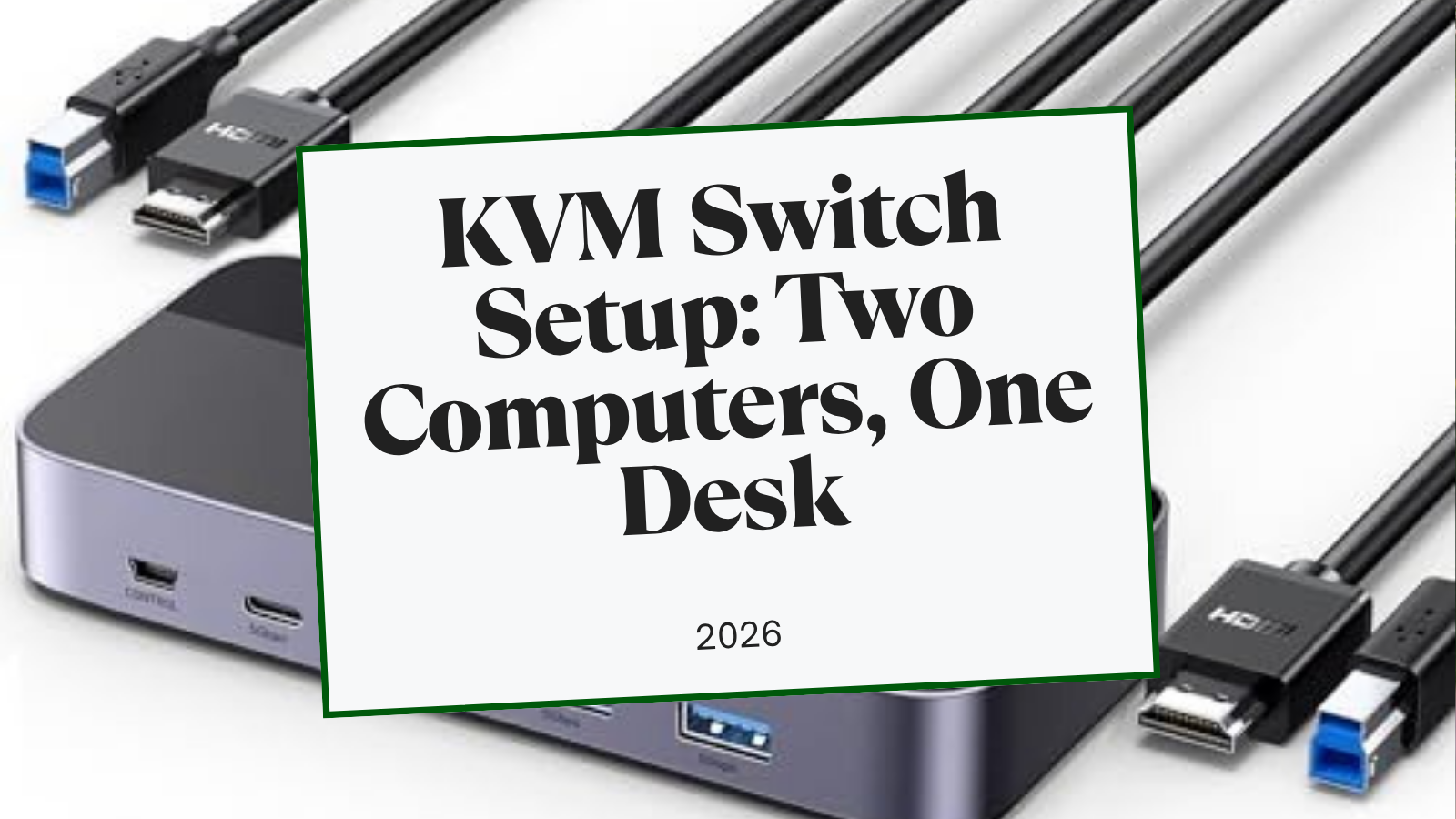
If you work from home, you probably have two computers on your desk, a work laptop and a personal machine. Most people deal with this by keeping two keyboards and two mice, or by constantly swapping cables. A KVM switch eliminates that problem entirely, usually for under $50.
Single monitor: UGREEN USB 3.0 HDMI KVM Switch ($40-$50) with 4K@60Hz, USB 3.0 ports, all cables included, one-button switching.
Dual monitors: TESmart Dual Monitor KVM ($170-$210) with EDID emulation that keeps your windows in place when switching.
USB-C laptops: Cable Matters 14-in-1 KVM Dock ($150-$200) combines dock and KVM into one device with 100W laptop charging.
What a KVM Switch Does
KVM stands for Keyboard, Video, Mouse. A KVM switch lets you share one set of peripherals between two or more computers. Press a button (or a keyboard shortcut) and your monitor, keyboard, and mouse instantly switch from one machine to the other. No unplugging cables. No re-pairing Bluetooth. No second set of peripherals taking up desk space.
Modern KVM switches also share USB devices like webcams, external drives, and headsets. Higher-end models support dual monitors, USB-C laptop charging, and resolutions up to 8K.
How to Choose the Right KVM Switch
Three questions determine which KVM you need:
- How many monitors? Single-monitor KVMs cost $40-75. Dual-monitor models start around $170.
- What ports do your computers have? HDMI is the most common and cheapest. USB-C models cost more but can charge your laptop simultaneously.
- Do you need USB 3.0? If you share external drives or webcams between computers, USB 3.0 (5Gbps) matters. USB 2.0 models are cheaper but limit data transfer speeds.
If both machines are USB-C laptops and one of them is a MacBook, compare the best USB-C KVM switch for Mac and Windows before buying. Apple Silicon display limits change which KVM path makes sense.
For high-resolution production work, fast dock-connected storage, or other workloads that need more bandwidth than a normal USB-C office setup, check the Thunderbolt KVM guide for Mac and Windows before choosing the switch.
| Feature | UGREEN USB 3.0 | UGREEN 8K | TESmart Dual | Cable Matters | TESmart Hybrid |
|---|---|---|---|---|---|
| Price | $40-$50 | $65-$75 | $170-$210 | $150-$200 | $350-$500 |
| Monitors | 1 | 1 | 2 | 2 | 2 |
| Max Resolution | 4K@60Hz | 8K@60Hz | 4K@60Hz | 4K@60Hz | 4K@60Hz |
| Connection | HDMI | HDMI | HDMI | USB-C | USB-C + HDMI |
| USB Speed | 3.0 | 3.0 | 2.0 | 3.0 (10Gbps) | 3.0 |
| Laptop Charging | No | No | No | 100W | 60W |
| EDID Emulation | No | No | Yes | No | Yes |
| Cables Included | All | All | All | All | All |
Tip: EDID emulation matters if you use dual monitors. Without it, your windows and desktop icons rearrange every time you switch computers because the OS thinks the monitor was disconnected. TESmart models include this feature; most budget KVMs don't.
Setup in 5 Minutes
Step 1: Check Your Ports
Look at the back of your monitor(s) and both computers. Note whether you have HDMI, DisplayPort, or USB-C. Most KVM switches use HDMI. If your laptop only has USB-C, you need either a USB-C to HDMI adapter or a USB-C native KVM like the Cable Matters dock.
Step 2: Connect the Monitor
Connect your monitor(s) to the KVM switch's output ports using the included HDMI cables. For dual-monitor setups, connect both monitors to the KVM's two output ports.
Step 3: Plug In Your Peripherals
Connect your keyboard and mouse to the KVM's USB ports. If you use a USB headset or webcam that you want shared between both computers, plug those in too. They switch along with your keyboard and mouse.
Step 4: Connect Both Computers
Use the included cables to connect each computer to the KVM's input ports. Each computer gets one HDMI cable (for video) and one USB cable (for peripherals). USB-C KVM models use a single cable per computer for both video and data.
Step 5: Test and Switch
Power on both computers. Press the KVM's switch button or use the keyboard hotkey (if supported) to toggle between machines. Verify that the monitor, keyboard, mouse, and any shared USB devices all switch together. The transition takes 1-3 seconds.
Tip: Place the switch button or remote where your hand naturally rests. If you have to reach behind your monitor to press it, you'll stop using the KVM within a week.
Common Issues and Quick Fixes
Monitor goes black for 2-3 seconds when switching. This is normal. The KVM is re-establishing the video connection. HDMI switches typically take 1-3 seconds; USB-C models with Power Delivery can take up to 5 seconds.
Windows and icons rearrange after switching. Your KVM lacks EDID emulation. This is the most common complaint with budget models. The fix is upgrading to a TESmart model with EDID emulation, or using a software workaround like DisplayFusion (Windows) to save and restore window positions.
USB devices disconnect or fail to switch. Some USB 3.0 devices draw more power than the KVM can supply. Connect a powered USB hub to the KVM's USB port, then connect power-hungry devices to the hub instead.
Keyboard or mouse lag after switching. This usually happens with Bluetooth peripherals connected via a USB receiver. Use a wired keyboard/mouse or a 2.4GHz wireless receiver (like Logitech Bolt) instead of Bluetooth for the most reliable switching.
Frequently Asked Questions
Can I use a KVM switch with a Mac and a Windows PC?
Yes. KVM switches are OS-agnostic. They pass video and USB signals without any software. Both machines see the monitor and peripherals as directly connected. One caveat: macOS doesn't support dual extended displays through most USB-C KVM docks due to Apple's DisplayPort MST limitations. Mac users with dual monitors should use an HDMI-based KVM like the TESmart.
Will a KVM switch add input lag?
No perceptible lag for office work. KVM switches pass keyboard and mouse signals with sub-millisecond overhead. Competitive gamers at 144Hz+ may notice a difference, but for typing, browsing, and productivity work, lag isn't a factor.
Do I need to install drivers?
No. Every KVM switch listed here is plug-and-play. They appear to each computer as standard USB hub and HDMI display connections. No drivers, no software, no configuration on either machine.
Can I share a webcam between two computers?
Yes, if the KVM has USB 3.0 ports. Connect the webcam to the KVM and it switches alongside your keyboard and mouse. USB 2.0 KVMs can also share webcams but may limit video resolution to 720p due to bandwidth constraints.
Will my headphones switch too?
If they connect via USB (wired or wireless dongle), they switch with the KVM. Bluetooth headphones paired directly to one computer won't switch. For seamless audio switching, use a USB-connected headset or plug speakers into the KVM's audio output (available on TESmart models).
What desk setup works best with a KVM switch?
A KVM works best when your cables are organized. Route the KVM's cables through a cable management system to keep the extra cables from two computers hidden. A monitor arm also helps since it lifts the monitor off the desk, giving you room to place the KVM switch behind the display. For a complete two-computer workstation, pair your KVM with an UPLIFT V3 Standing Desk. Its 48 threaded mounting points and FlexMount cable management handle the extra cable routing that a dual-computer setup demands.
All recommendations are based on specification analysis, expert reviews, and owner feedback, not personal testing.
Related Guides
- Desk Cable Management: Complete Setup Guide: Essential for organizing two computers worth of cables
- Best Monitor Arms for Desk Space: Free up room for the KVM behind your display
- How to Set Up Dual Monitors: Pair your KVM with a multi-monitor setup
- Best Ergonomic Keyboards for Home Office: Share one keyboard between both machines
- Best Wireless Mouse for Productivity: Share one mouse between both machines
- Best Ergonomic Desk Setup: Complete Guide: Full workstation walkthrough