
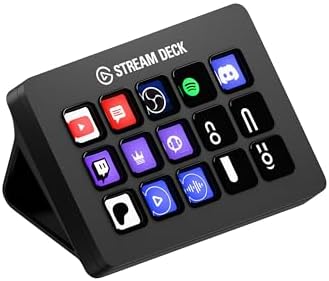
A Stream Deck is a small control pad made by Elgato that sits beside your keyboard. Its buttons have little screens showing the labels or icons you choose. You assign each button a computer action, such as opening your calendar, taking a screenshot, or muting a supported meeting app.
Think of it as a customizable remote control for your computer. For example, instead of finding a project folder and opening your calendar separately, you can configure a Start Work button to open both. You set up those actions in Elgato's desktop software; the buttons don't arrive knowing your apps or files.
There are two ways to use this guide: a physical Stream Deck connected to your computer, or Stream Deck Mobile, which puts touch buttons on a phone or tablet paired with that computer. You don't need to stream video to use either for office work.
Start with the six-key plan below. Keep the actions you actually use, replace the rest, and buy physical hardware only if reaching for those keys becomes a habit.
Start here: Build six keys for Project, Calendar, Notes, Reply, Capture, and Start Work.
Try before buying: Elgato currently offers six free keys in Stream Deck Mobile for iOS and Android. You'll also need the desktop software and a compatible computer.
Physical six-key option: Elgato Stream Deck Mini ($59) matches this starter layout.
More buttons on one page: Elgato Stream Deck MK.2 ($129.99−13%) gives you 15 keys for your work shortcuts and meeting controls.
For meetings: Keep mic and camera controls separate from your general work routine. Check their actual state inside the meeting app.
Skip the purchase if: Keyboard shortcuts already work well for you, or your employer doesn't permit the required software.
This is a documentation-based setup plan, not a hands-on hardware review. Elgato's free mobile setup overview explains the starting option and where to get it.
Amazon links below are affiliate links. As an Amazon Associate I earn from qualifying purchases.
Choose a physical Stream Deck for your desk
| Option | What you press | Best fit for this guide | Current price |
|---|---|---|---|
| Stream Deck Mobile | Touch buttons on your phone or tablet | Try the six-key layout before buying hardware | Six-key version is free |
| Elgato Stream Deck Mini | Six physical LCD buttons | Keep just the starter actions within reach | $59 |
| Elgato Stream Deck MK.2 | 15 physical LCD buttons | Keep work and meeting actions visible together | $129.99−13% |
Elgato Stream Deck Mini: For the six-key starter layout
The Mini is the straightforward physical match for the plan below: one button for each of the six actions. Its LCD buttons display your chosen labels or icons, so you can see what each press will do. Elgato's Mini product page documents the six-key layout.
Choose it if those six actions cover your everyday needs. You can put more actions in folders or on other pages, but only six are visible at once. If you want your work shortcuts and meeting controls in front of you together, compare the MK.2 before buying.
Elgato Stream Deck MK.2: For more visible shortcuts
The MK.2 has 15 customizable LCD keys and a detachable USB cable. You could keep the six starter actions on one part of the pad and add separate mic, camera, and other supported app controls without replacing them. Elgato's model comparison documents its hardware features.
Choose it when you can name the extra actions you'll use. Skip the larger layout if you only need a few shortcuts. Both physical models still require compatible software, a computer connection, and time to configure your actions; buying the hardware doesn't remove those steps. Check the exact listing's connection and your computer's ports before ordering.
Decide whether a Stream Deck solves your problem
The best reason to add one is repeated searching or remembering. A labeled Project key can be easier to recognize than a buried folder. A Reply key can hold a short, reusable sentence that you edit before sending. Neither benefit requires a streaming setup.
It makes less sense when your bottleneck is something else. If you keep losing windows between two computers, fix the KVM and monitor arrangement. If callers can't hear you, fix the microphone position. A controller doesn't replace those connections or improve a camera's picture.
Before spending money, write down three tasks you repeat during an ordinary workday. If you can't name three, use your existing shortcuts for another day and notice where you pause. That list is a better shopping guide than the number of available buttons.
What you need, and what to spend first
| Your starting point | What to prepare | Purchase decision |
|---|---|---|
| You already own a Stream Deck | Current desktop software and a new office profile | Reuse it before adding hardware |
| You have a compatible phone or tablet | Stream Deck Mobile and the desktop software | Try the six free keys first |
| You want a permanent desk control | A place within comfortable reach and an approved software setup | Choose hardware after testing your layout |
| You use a managed work computer | Your organization's software and plugin permissions | Confirm access before buying |
Use Elgato's downloads page for the current desktop software and system requirements. Mobile connects to that computer; it isn't a standalone replacement for the desktop application. Follow the pairing steps for your phone and network.
My spending order: test the free layout, identify which actions deserve permanent keys, then compare physical devices. More keys make sense when you keep paging to reach actions you use together. Dials only matter if you have a specific adjustment to assign to them. Don't pay for controls you can't yet name a job for.
Build this six-key office layout
Treat this as a starting plan, not a profile file to import. Your folder paths, apps, and shortcuts will be different. The diagram groups the six suggested actions; it isn't a product screenshot. The physical Mini arranges its buttons in two columns of three, so place these actions in the positions you find easiest to reach.
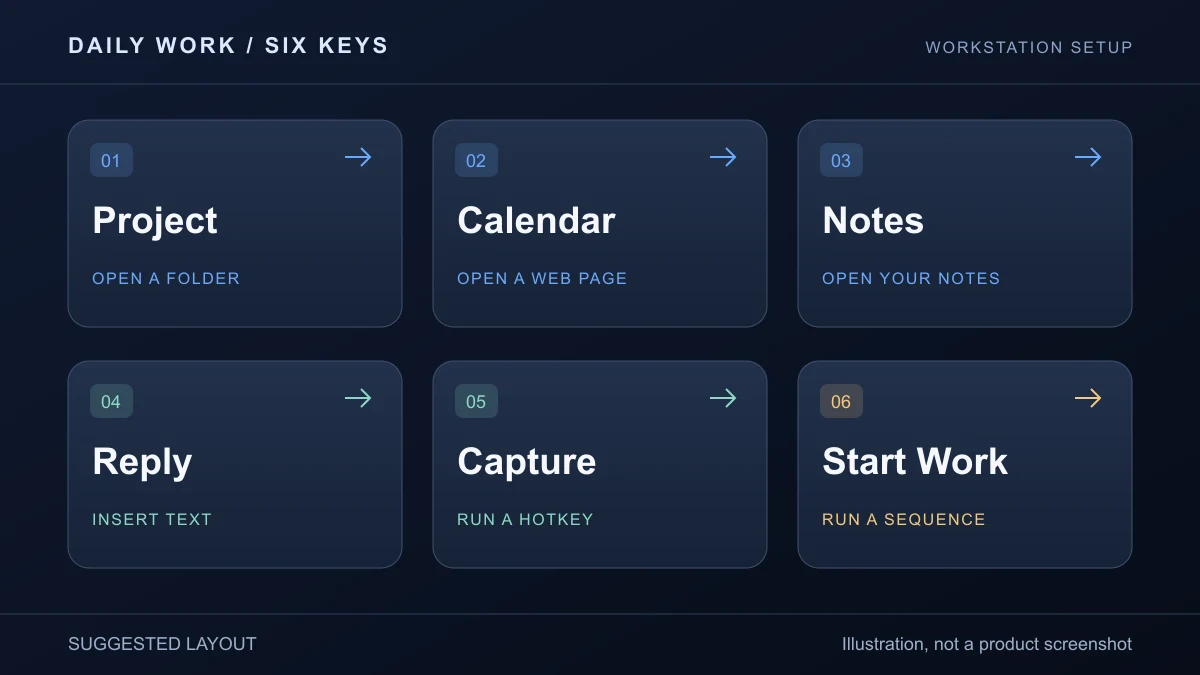
| Key label | Action to configure | Your first assignment |
|---|---|---|
| Project | System: Open | Your current project folder |
| Calendar | System: Website | Your usual calendar page |
| Notes | System: Open | A notes app or one working note |
| Reply | System: Text | A short reusable sentence, without automatic sending |
| Capture | System: Hotkey | A screenshot shortcut you've already checked on your computer |
| Start Work | Multi Action | Open your project, calendar, and notes in sequence |
In the desktop app, drag an action from the action list onto an empty key, then configure its destination or command. Give the key a short title you can read at a glance. Elgato documents Open, Website, Hotkey, Text, and other System actions.
Test Project, Calendar, and Notes individually before creating a sequence. Opening a file uses its associated application, so check what actually appears rather than assuming the icon tells the whole story.
For Reply, start with something low-risk, such as “Thanks, I'll review this and follow up.” Leave the option to press Enter disabled. Put the cursor in a blank document, press the key, and inspect the result. You should still choose the recipient and review the message yourself.
For Capture, run the intended shortcut from the keyboard first. Then assign that exact combination to the key. This distinguishes a shortcut problem from a Stream Deck configuration problem.
Make Start Work predictable
A useful first sequence opens resources. It shouldn't send a message, join a call, or change your microphone state.
- Add a Multi Action to the sixth key.
- Add the working Project, Calendar, and Notes actions in the order you want them to open.
- Run the sequence with the apps closed. Observe which window ends up in front.
- Run it again with the apps already open. Check for duplicate tabs or windows.
- Add a delay only where an action needs time before the following step.
Elgato's Multi Actions guide explains sequences and configurable delays. A fixed delay isn't proof that an application has finished loading. Keep your first sequence to actions that don't depend on typing into a newly opened window.
If the routine opens five things but you immediately close three, reduce it. A good setup makes your next step obvious; it shouldn't create a new cleanup task.
Add meeting controls as a separate profile
Once the everyday layout works, make a meeting profile with clearly separated Mic and Camera controls. For Zoom, Elgato provides an official plugin with audio/video controls and status feedback. Its setup guide currently specifies Zoom Workplace 6.4 or later; check the current plugin requirements before installation. The actions become active when you join a meeting. Elgato's Zoom plugin guide.
Test in a meeting by yourself. Press Mic, then look at Zoom's microphone indicator. Repeat for Camera. A meeting control should be something you can verify, not an icon you trust without checking.
Keep Leave/End Meeting away from your most frequently used keys. I wouldn't include it in the starter layout. Keep screen sharing deliberate too: choose and inspect the screen or window before exposing it to others.
For Teams or another app, check the current plugin listing and your organization's rules. A generic hotkey can depend on which window has focus; it isn't automatically equivalent to an integration that reports the app's state. Don't reuse Zoom instructions as a promise of compatibility with every meeting service.
Use Smart Profiles only after the manual layout works
Smart Profiles switch layouts when the assigned application is in focus. In Stream Deck settings, open Profiles, select a profile, then choose its application in the Application menu. Minimize the Stream Deck editor before testing the switch. Elgato says automatic switching is inactive while you're editing and doesn't support UWP applications. Smart Profiles instructions.
For office work, the main tradeoff is predictability. If switching from your meeting to a spreadsheet changes the keys, your mic control may no longer be where you expect it. Start with a manually selected meeting profile if you move between apps frequently during calls.
Keep shared actions in consistent positions across your layouts. For example, put Notes in the same corner of both your general and meeting profiles. Consistency matters more than filling every empty key.
Fix these problems before buying more keys
| Problem | Check first | Next step |
|---|---|---|
| The wrong app responds to a hotkey | Which window has focus | Try the shortcut on the keyboard, then use an app-specific action where supported |
| Reply appears in the wrong place | The active text field | Select the intended field before pressing the key; keep automatic Enter off |
| Start Work opens duplicate tabs | What a second press does | Simplify the sequence and avoid pressing again while it runs |
| The profile doesn't change automatically | Assigned application and editor state | Minimize the editor and test a supported app in the foreground |
| Zoom keys look inactive | Whether you've joined a meeting | Check the plugin's requirements and connection instructions |
| A restored key shows a question mark | Whether its plugin is installed | Reinstall the required plugin from its verified listing |
Back up a working layout before making a large change. Elgato's profile backup guide covers Settings > Profiles > Backup All > Create Backup. Backups retain action assignments but don't contain copies of the plugins. Restoring a full backup can overwrite existing profiles, so keep a copy of the current setup first.
Decide whether physical keys earn a place on your desk
Use the layout through ordinary work before buying hardware. Note which keys you use without looking for them, which you forget, and which need several corrections to work. Replace unused keys before expanding the layout.
Buy physical hardware if you repeatedly use the actions, want dedicated controls within reach, and prefer keeping your phone available for other tasks. Check the Mini on Amazon for the six-key layout, or check the MK.2 on Amazon if you need more actions visible together. Confirm the exact model's current computer requirements and connection before ordering.
Stay with Mobile or keyboard shortcuts if the layout is useful only occasionally, the phone placement works, or software permissions remain uncertain. A physical device doesn't remove the need to configure and maintain the actions.
Place the controller where you can press it without reaching past your mouse or changing your normal typing position. If adding it crowds the desk, revisit the cable-management layout before purchasing another stand or accessory.
Frequently asked questions
Can I use a Stream Deck for office work without streaming?
Yes. App launchers, text actions, hotkeys, profiles, and meeting controls can support office tasks. Start with the tasks you repeat instead of importing a streaming layout full of controls you won't use.
Do I need a physical Stream Deck to try this layout?
No. Elgato currently offers six free Stream Deck Mobile keys on iOS and Android. Check device compatibility and install the required desktop software before building the layout.
Will a Stream Deck control both computers on my desk?
Don't treat it as a KVM switch. This guide builds actions for the computer running the desktop software. Sharing hardware, profiles, and app access across two hosts needs its own configuration. Plan the two-computer desk connection separately.
Should I download a ready-made office profile?
Only if its actions fit your apps and you understand what they do. Review every destination, hotkey, and plugin requirement before using it with real work. A small layout you understand is easier to maintain than a large one with unfamiliar actions.
Related guides
- Set up your desk for video calls: camera placement, lighting, and audio.
- Connect two computers to one desk: the hardware-sharing problem a shortcut controller doesn't replace.
- Organize your desk cables: leave room for the controls you actually use.