The buyer fork is one question: do you need a workstation, or do you need a piece of furniture that also sit-stands?
- Dedicated home office, arms, speed, quiet motors, accessory mounts without thinking → UPLIFT V3
- Shared room, writing/craft table vibes, "wait, that's a standing desk?" → UPLIFT Parsons
$829+
Five weeks ago I unboxed the Parsons and promised a real review after living with it. I've been switching between it and my V3 every day since. Different rooms, real work at both. The V3 keeps winning on simplicity. The Parsons keeps winning on something harder to name: it does not look like office equipment. That is the whole review in one sentence.
UPLIFT provided the desk at no cost for review. Opinions are mine.

Quick take
- Tapered legs hide the lift. Visitors clock "dining table," not "standing desk"
- Flush apron keypad is soft, intentional, and weirdly fun to poke
- Zero wobble at standing height with a real working load
- Anti-collision is looser than the V3's six-axis gyro. Factor kids/pets
- Motor is louder than the V3. Speakerphone without suppression hears it
- Assembly wants a drill, pilot holes, and more motor-cable routing than the V3's 16-screw path
Specs that matter
| UPLIFT Parsons | |
|---|---|
| Price | $829+ |
| Frame | Hidden lift inside tapered legs (~1.7") |
| Height (listed, without top) | 26.7" to 44.1" |
| Capacity class | Same 355 lb story as the rectangular V3 |
| Tops | 42" to 80" wide × 24"/30" deep (mine: 60×30 Acacia butcher block) |
| Keypad | Flush in front apron, 3 presets + M |
| Cables | Rear crossbar channel + included leg-clip channel |
| Anti-collision | Yes, resistance-based. Looser than V3 in my use |
| Noise | Louder than V3 (audible on speakerphone) |
| Assembly | Drill + pilots. More screws and leg-motor cables |
| Warranty | 15-year frame story |
Same capacity class and warranty length as the V3. You are paying for the furniture frame, not "more years on paper."
What "well designed" actually means here
"Well designed" usually means rounded corners and a press release. The Parsons earns it in three small ways I still notice five weeks in.
Keypad. Flush in the front apron, not a puck bolted under the lip. Smooth face, soft to touch, feels like part of the desk. Early nights I raised and lowered it for no reason other than the feel. That is either great design or a mild addiction. Possibly both.
Legs. Thin enough to look almost delicate. The entire lift lives inside them. Friends learn it raises and do the same double-take every time: "That's a standing desk?" From across the room you see four tapered legs and a top, not industrial columns.
Cumulative quiet. Acacia sits tight to the frame. Cable channel eats the rear mess. Leg-clip channel handles the rest. Nothing about the Parsons asks for applause. That is the philosophy.


Stability at standing height
Thin legs made me expect flex. I do not get it. Typing hard, leaning on the front edge, monitors on the top: nothing shakes across the height range. Visitors judge the legs first, decide it cannot possibly be solid, then watch a full raise with everything on it and change the subject.
Stability is not the Parsons-vs-V3 separator. Both hold standing height in my daily use. Look and accessory story are.
Anti-collision: read this before you order
Parsons has anti-collision (calibrated in the ASF reset from the unboxing). The response is noticeably looser than my V3's six-axis gyroscope.
Two real moments:
- Raising while I pressed down on the top. The desk lifted me instead of stopping cold and dropping back.
- Lowering with my legs in the way. It kept going with pressure instead of reversing the way the V3 does.
Not a deal-breaker in an empty room. Kids running around, a dog that sleeps under furniture, anyone who could be under the desk mid-travel? Know what you are buying. Confirm current behavior with UPLIFT support if that is your household. The V3 is the safer reflex for chaos under the top.
Motor noise
Louder than the V3. I would not pause a call to raise it. Speakerphone without noise suppression hears it easily. The V3's under-48 dB motor stays near whisper. The Parsons makes itself known. Sit-to-stand audio is below if you want ears-on proof. Volume up.
Cables under a hidden frame
Built-in rear channel plus the included leg-clip channel hide keypad cable, leg motors, and the brick. Nothing dangles. At standing height, when the underside is most visible to the room, it does not look like a "please don't look under there" situation.
The furniture frame basically forces good habits. Sloppy routing would show. Most standing desks treat cables as an afterthought. Parsons treats them as part of the silhouette.

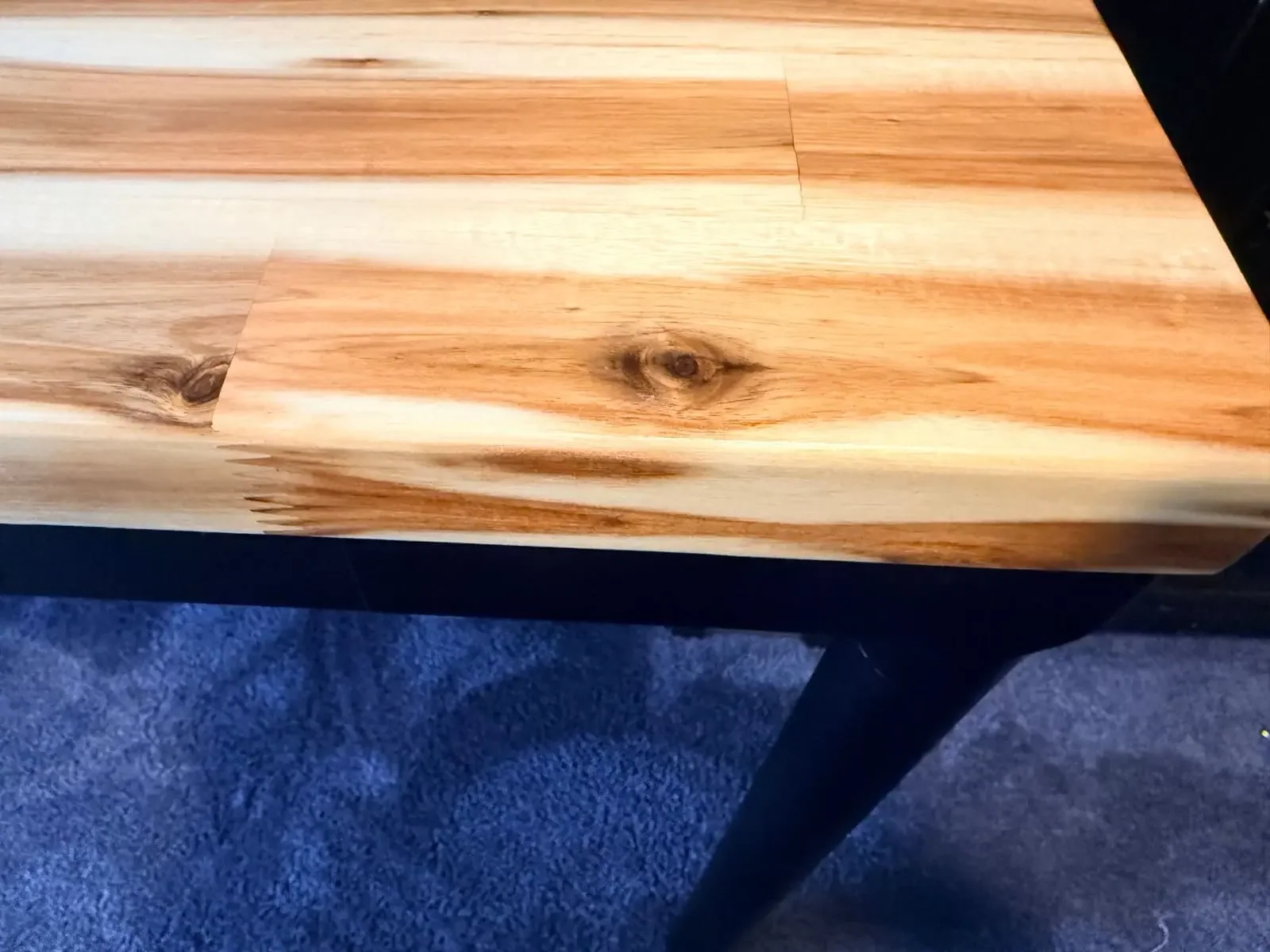
Acacia after five weeks
No scratches, dents, mouse-pad scars, or watermarks in my use. Grain looks like day one. I have not oiled or conditioned it yet.
Caveat that should drive your shopping: Acacia is a top option across UPLIFT frames. V3, L-Shaped, and friends. Love the wood? Put it on any frame. Pick Parsons vs V3 for the frame job, not because you "need Acacia."
Accessories and the flush-frame tradeoff
Unboxing flagged edge clearance because the Parsons frame sits flush to the desktop. Five weeks later: more nuance than panic.
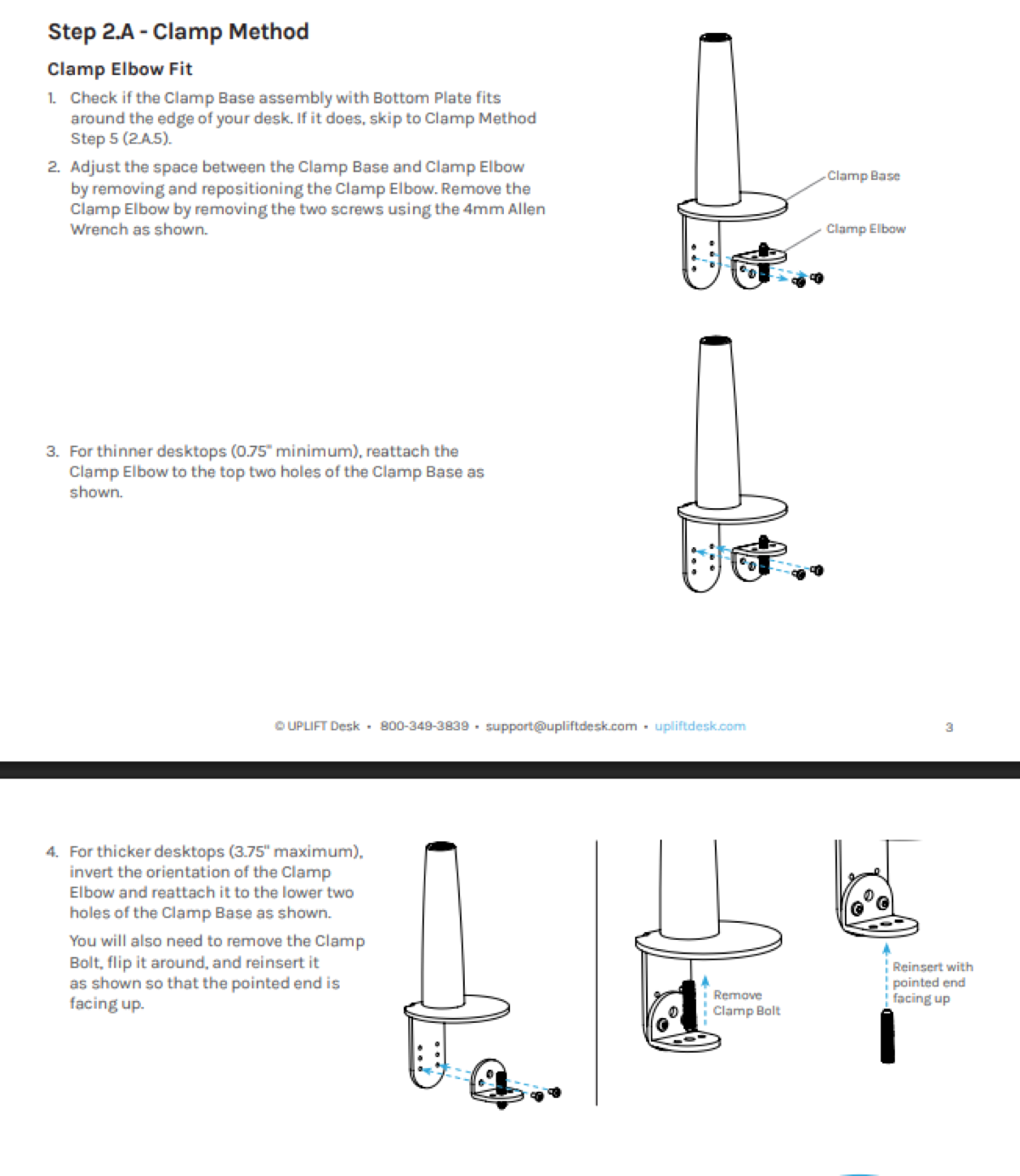
Monitor arms work. I run a Range-X · $139 on a grommet (I like the monitor offset). Clamp also works on thick Acacia. Reposition the Clamp Elbow to the lower two holes and flip the Clamp Bolt (pointed end up). UPLIFT's Step 2.A covers it. Cold-swap a thin-laminate clamp config onto butcher block and you invent a fit problem. Follow the manual and you do not.
Smaller edge clamps (hooks, bottle openers, that species) need to sit farther back to clear the frame. They fit, just not at the absolute lip the way they do on a V3. Floor-standing gear skips the question: the Inclining Walking Pad · $349 slides under at standing height without touching the frame.
If the V3's 48 threaded frame mounts and FlexMount ecosystem are why you want UPLIFT, Parsons does not kill accessories. It asks you to plan around a furniture profile instead of a steel erector set.
What you're paying for
Parsons hides the lift in four tapered legs. People walk past and do not realize it raises. They see a wood-top table and treat the room accordingly.
My V3 lives in the home office. It should look like office equipment. The Parsons lives elsewhere, with other furniture in the room. Without that furniture read, the space would say "workstation jammed into a living room." With it, the room stays a room that happens to have a sit-stand table.
If Parsons jumped out next to the V3 on price, this is the answer to "why more": you are buying a frame that gets out of the way visually.

What I'd change
The install. Too many screws. V3 went together in 16 screws and almost no wiring. Parsons had me drilling pilots and routing each leg motor back to the control box. Same destination. More assembly drama than the design deserves. Looser anti-collision, louder motor, and clamp-setback tradeoffs all trace to what makes Parsons Parsons. The screw pile does not. That one feels revisable.
Parsons vs V3 after five weeks
| V3 | Parsons | |
|---|---|---|
| Job | Daily workstation | Furniture that sit-stands |
| Look | Industrial steel / mounts | Tapered legs / flush apron |
| Feel | Faster, quieter, snappier stop | Slower, louder, softer collision feel |
| Keypad | Bottom advanced + USB, 4 presets | Flush apron, 3 presets |
| Accessories | FlexMount + 48 frame points | Channels + desktop clamp/grommet |
| Assembly | ~5 min, 16 screws, one tool | Drill, more screws/cables |
| Pick when | Screens, arms, first sit-stand | Shared rooms that should not look "office'd" |
Deep dive: /compare/uplift-v3-vs-parsons-standing-desk. Full lineup: /guides/which-uplift-standing-desk-is-right-for-you. Unboxing: /reviews/uplift-parsons-standing-desk-unboxing.
Who should buy it
Anyone whose room already has a sofa personality. Writing desk, craft table, collaboration surface, or shared-space sit-stand that should not announce "standing desk" from the doorway. You like the flush keypad and tapered legs enough to accept a louder motor, looser anti-collision, and a drill on build day.
Who should skip it
First standing desk, all-day screens, monitor arms and trays everywhere, quiet calls, kids/pets under the desk during travel → V3 · $599-$939. Corner room → V3 L-Shaped. Wide heavy rectangle → V3 4-Leg. Budget-first lane → /guides/best-standing-desks-under-700.
Verdict
Both desks are good. They solve different jobs, which is why I own both and switch by room and mood. V3 for the workstation. Parsons for the room that should still feel intentional when nobody is "at work."
Configure the Parsons at UPLIFT · $829+
Frequently asked questions
Is it stable at standing height?
Yes in five weeks of real load. No wobble, no monitor shake, no flex I could feel on front-edge leans. Thin legs lie about how solid it is.
How loud vs the V3?
Louder. Fine on a suppressed call. Naked speakerphone hears the motor. V3 stays near whisper (UPLIFT lists under 48 dB on that frame).
Anti-collision with kids or pets?
It has detection, calibrated on reset, but response is looser than V3's six-axis path in my use. Confirm current behavior with UPLIFT if that matters for your house.
Monitor arm on Acacia?
Yes. Range-X via grommet (my setup) or clamp with the thick-top Clamp Elbow / bolt flip in Step 2.A. Arms guide: /guides/best-monitor-arms-desk-space.
Will small under-desk clamps fit?
Yes, farther back from the edge to clear the flush frame, not parked at the lip like on a V3.
Acacia holding up?
Five weeks: no scratches, dents, pad wear, or watermarks. No oil yet. Reminder: tops swap across frames. Buy Parsons for the frame.
V3 or Parsons?
Workstation / first sit-stand / mounts / quiet / snappy stop → V3. Furniture in a shared room → Parsons.
Need a drill?
Yes. Frame screws need pilots. Holes are not pre-drilled. Cordless drill + small bit is enough. Have it before delivery day.
Shorter seated height?
V3 lists a lower minimum (22.6" vs Parsons 26.7" without top). Measure elbows if you sit low.
UPLIFT links are affiliate links. UPLIFT provided this desk at no cost for review.