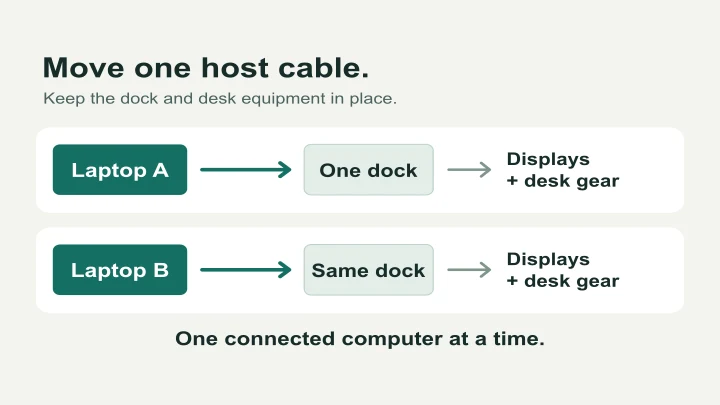
You want your work laptop and personal computer to use the same monitors, keyboard and dock. A Thunderbolt 5 dock can make the desk easier to connect, but buying one doesn't automatically add a button that switches between computers. First work out which connection you need to move.
Quick answer
Two compatible computers, one dock: Move the dock's host cable from one computer to the other. Only the connected computer uses the dock.
Frequent switching: Keep each computer connected separately, then switch the monitors and USB peripherals with equipment matched to those connections.
Before buying a switch: Verify the exact dock, both host computers, display modes and charging path. A USB-C socket isn't proof of Thunderbolt 5 switching.
A dock's extra Thunderbolt ports aren't extra computer inputs
The upstream or host port connects a dock to the computer controlling it. Downstream ports connect accessories and supported displays. Counting the Thunderbolt sockets doesn't tell you how many computers a dock can switch between.
For example, the CalDigit TS5 Plus specifications list one Thunderbolt 5 host port and two downstream Thunderbolt 5 ports. Those downstream sockets don't make it a three-computer KVM. For the setup below, the cable between the host port and the active computer is the one you move.
Don't use a passive USB-C splitter to join both computers to that host port. The connection needs one selected host. A purpose-built switch must explicitly support the dock and the features you're trying to retain.
Choose what actually needs to switch
| Your desk needs | Connection layout | What to account for |
|---|---|---|
| One complete desk, used by one computer at a time | Share one compatible dock and move its host cable | The disconnected computer loses access to the dock's devices and host charging |
| Both computers stay connected to their own storage and network | Give each computer its own dock or direct connections; use separate monitor inputs and a USB peripheral switch | Switching the screen and keyboard may take separate actions |
| One-button monitor, keyboard and mouse switching | Use a KVM with inputs and outputs verified for both computers and every display | Its video, USB and charging limits still apply, even with a Thunderbolt computer attached |
Start with the cable-swap layout if you change computers once at the beginning or end of the day. If you switch throughout a meeting or repeatedly need files on both machines, the separate-connections layout deserves a closer look. Keeping a drive attached to its own computer avoids making every keyboard change a storage disconnect.
What you need before connecting anything
Write down these details for each computer. Don't buy around the faster laptop and assume the other one will behave the same way.
| Check | Record this |
|---|---|
| Computer | Exact model, chip or processor, and operating-system version |
| Host connection | Which physical port supports the protocol required by the dock |
| Displays | Model, available inputs, desired resolution and refresh rate, extended or mirrored desktop |
| Power | Whether the computer accepts charging through that port and the manufacturer's recommended power supply |
| Shared equipment | Keyboard, mouse, webcam, audio, Ethernet, card readers and external drives |
| Dock | Exact model, supported hosts, host cable, display connection diagram and any required drivers |
Have the dock's power supply, its supplied host cable, and the correct display cables ready. Use the computer's own charger when dock charging isn't supported or isn't sufficient for your workload. On a managed work computer, check permitted docks and accessories before planning around a device you can't approve or install.
Compatibility can be narrower than the connector suggests. CalDigit excludes ordinary 5Gbps and 10Gbps USB-C hosts from the TS5 Plus and distinguishes Thunderbolt 3 Mac support from unsupported Thunderbolt 3 Windows hosts. Its USB4 host support requires PCIe tunneling. Check its current system requirements against both computers, including OS and firmware requirements.
For a Mac, start with Apple's display connection guidance and your exact model's specifications. A dock with several display-capable sockets doesn't override the computer's supported display count or refresh rates.
Set up one dock with two computers
1. Establish a working connection with computer A
Power the dock and connect its designated host port directly to the appropriate port on computer A using the supplied host cable. Leave any proposed switch, extension or coupler out of this first check.
Connect one monitor using the dock manufacturer's diagram. Select that input on the monitor and confirm the desired resolution in the operating system. Then add the second display, if supported, followed by the keyboard, mouse and remaining accessories.
Check the things you actually use: type into a document, move the pointer, preview the webcam, select the microphone and speakers, and confirm Ethernet connects. Check charging separately. A battery icon alone doesn't prove that the dock's data connection works.
2. Prepare drives and the network connection before switching
Finish file copies, save work and eject removable storage attached through the dock. On Windows, follow Microsoft's safely remove hardware procedure. On a Mac, eject the relevant volumes in Finder before disconnecting them. If a volume won't eject, close the app using it and resolve that first.
Include storage inside the dock in this check. For example, UGREEN's Maxidok 17-in-1 has an M.2 NVMe expansion slot. An SSD you've installed there still disconnects from the computer when you move the host cable; the enclosure staying on your desk doesn't change that.
Finish a video call before moving a dock that carries your Ethernet connection, webcam or headset. The inactive computer won't keep using those dock-connected devices. If it needs to remain online, give it an independent network connection.
3. Move the host cable to computer B
Disconnect the cable at the computer end and connect it to the verified host port on computer B. Leave the dock's power, monitor cables and peripherals connected.
Unlock computer B and respond to any accessory approval prompt for your dock. Apple documents that an Apple silicon Mac laptop can accept charging while denying accessory data access, so charging with no keyboard or display isn't sufficient reason to replace the dock.
Repeat the display and accessory checks from step 1. If computer B supports fewer displays or a lower refresh rate, use a configuration within its documented limits. Don't assume the settings that worked on A are available on B.
4. Check the return trip before tidying the desk
Eject storage again, move back to A, and check that the required devices reconnect. Try a sleep and wake cycle on each computer while it is the connected host. Note any accessory approvals, audio-device selections or display arrangement changes you need to make.
Keep the computer end of the cable accessible. On a standing desk, verify slack throughout the desk's full travel before securing it; our desk cable management guide covers routing around moving furniture.
When a USB-C switch or KVM is a better fit
Adding a switch changes the connection you just verified. Check the complete path again, including cables supplied with the switch. Don't assume that a switch retaining some dock functions also retains Thunderbolt 5 throughput, every display mode or every attached device.
Cable Matters 201352: Check its reduced connection limits
The Cable Matters 201352 specifications describe a 20Gbps switching path with support for compatible USB-C and Thunderbolt 4 monitors or docks. The manufacturer specifies its included USB4 cables and lists one extended display on macOS. Its published dock examples don't establish support for the TS5 Plus or Maxidok at full Thunderbolt 5 capability.
Treat this as a different connection configuration, not a transparent replacement for your direct host cable. Get confirmation for your exact dock and display combination before buying it for a Thunderbolt 5 desk.
TESmart HDC202-X24: A laptop-and-desktop layout
The TESmart HDC202-X24 connection table shows a Thunderbolt 4 laptop input and a separate desktop input using video cables plus USB upstream. It has two HDMI display outputs, with a listed maximum of 4K at 60Hz, and up to 60W charging on the laptop input.
That layout may suit a laptop-and-desktop desk after model-specific display checks. It isn't two interchangeable Thunderbolt 5 host inputs, and it shouldn't be bought to preserve a shared Thunderbolt 5 dock's complete connection. Skip it if both computers need the same single-cable Thunderbolt 5 path. Our KVM connection-order guide covers wiring once you've chosen a suitable KVM.
What you'll need to spend
If you already own a dock that supports both computers, the first layout needs no additional switching hardware. Try the supplied host cable before ordering another box.
For separate connections, inventory your monitor inputs and spare cables first. You may need a USB peripheral switch, additional display cables, a second power supply or another dock. For a KVM, include any adapters and host charging equipment in the cost. Compare the whole working setup rather than the switch's price alone.
Don't upgrade a working Thunderbolt 4 desk just to add a button. Decide whether your problem is repeated cable handling, insufficient display support or storage performance; a new dock doesn't necessarily solve all three.
Common problems and the next check
| Symptom | Check next |
|---|---|
| Laptop charges, but accessories don't connect | Correct host port, supplied data cable, and any pending accessory approval |
| A works and B has a blank screen | Test B directly with one display; compare B's host capability and OS with the dock's requirements |
| Second display mirrors or stays dark | Exact computer and dock display matrix; check whether the chosen path supports two extended displays |
| Files disappear from view after switching | Dock-connected storage belongs to the currently connected host; reconnect to the intended computer and check permissions and filesystem support |
| Ethernet stops on the idle computer | Give that computer its own network connection if it needs to remain online |
| Windows move after reconnecting | Check display arrangement settings and the KVM window-rearrangement explanation before choosing a different switch |
Frequently asked questions
Can two computers use the same Thunderbolt 5 dock at once?
A single-host dock gives its attached devices to one connected computer at a time. Moving the host cable shares the desk sequentially. If both computers need ongoing access to files or a network, provide that access separately; don't treat the dock as shared network storage.
Does the computer without the host cable keep charging?
It loses charging through that host cable when you unplug it. Use its own charger if it needs power while inactive. Separate charging ports on a dock have their own power limits and don't give the second computer control of the dock.
Can a Thunderbolt 4 computer use a Thunderbolt 5 dock?
Some can, subject to the dock's exact compatibility requirements, with features limited by the host and connection. Check the manufacturer list for your model. Buying a newer dock doesn't upgrade the computer's port or display capabilities.
Should I replace my KVM with a Thunderbolt 5 dock?
Only if moving a host cable fits your routine and both computers support the dock. If your existing KVM already switches the screens and peripherals you need, keep it until you identify a specific capability it can't provide.